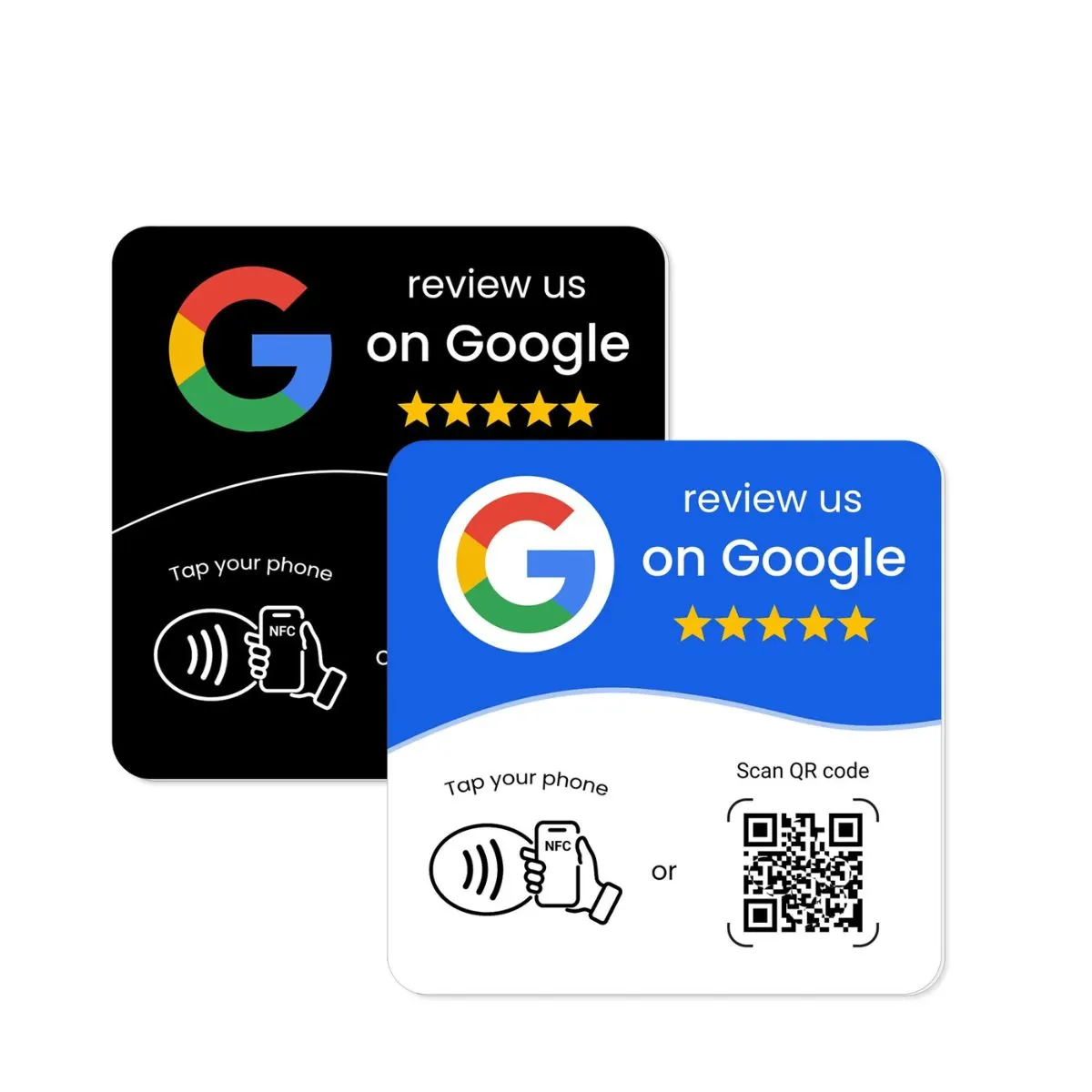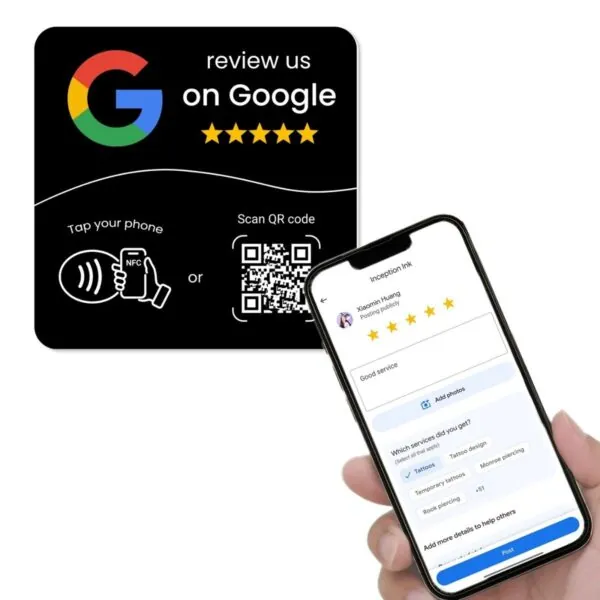

You want more Google reviews for your Australian business. You know they help you stand out in local search and give customers in your suburb a reason to trust you. The hard part is doing it every week without chasing every customer one by one.
Many Aussie owners start with good intentions. They ask a few customers in person, send a few emails, then get busy and stop. Staff forget to mention reviews. Messages go out at random times. Some weeks you collect reviews. Other weeks you collect none.
When people hear the word “automation” they often think of complex software, new subscriptions, and long setups. You do not need any of that to make real progress. You can create a simple review system with the tools you already use and a few smart touchpoints in your space.
Studies on local consumers show that almost everyone checks online reviews before choosing a local business, and most people use Google as their main review source. That includes the people searching for a Melbourne cafe, a Sydney plumber, a Brisbane physio, or a Perth electrician. If your reviews are easy to write and easy to find, more of those people will choose you.
This guide shows how to automate Google review requests in a practical way. It focuses on habits, triggers, and NFC or QR review devices rather than new apps. The goal is a repeatable process that runs with less effort and produces steady reviews each month for Australian small and local businesses.
What “automation” really means for Google review requests
Automation does not always mean a fancy platform. In many small Australian businesses, automation starts with simple rules:
- The same message goes out at the same point in the customer journey.
- Staff follow a short script each time.
- There are clear places in your space where people can leave a review with one tap or scan.
In other words, you remove decisions and guesswork. You build a path that runs the same way every time. The more consistent your path, the more reviews you collect without chasing each job by hand.
Review research shows that almost all consumers read online reviews when researching local businesses, and a strong majority use Google as their main review source. When your system quietly pushes more customers through to your Google review page, it lines up with how people already behave.
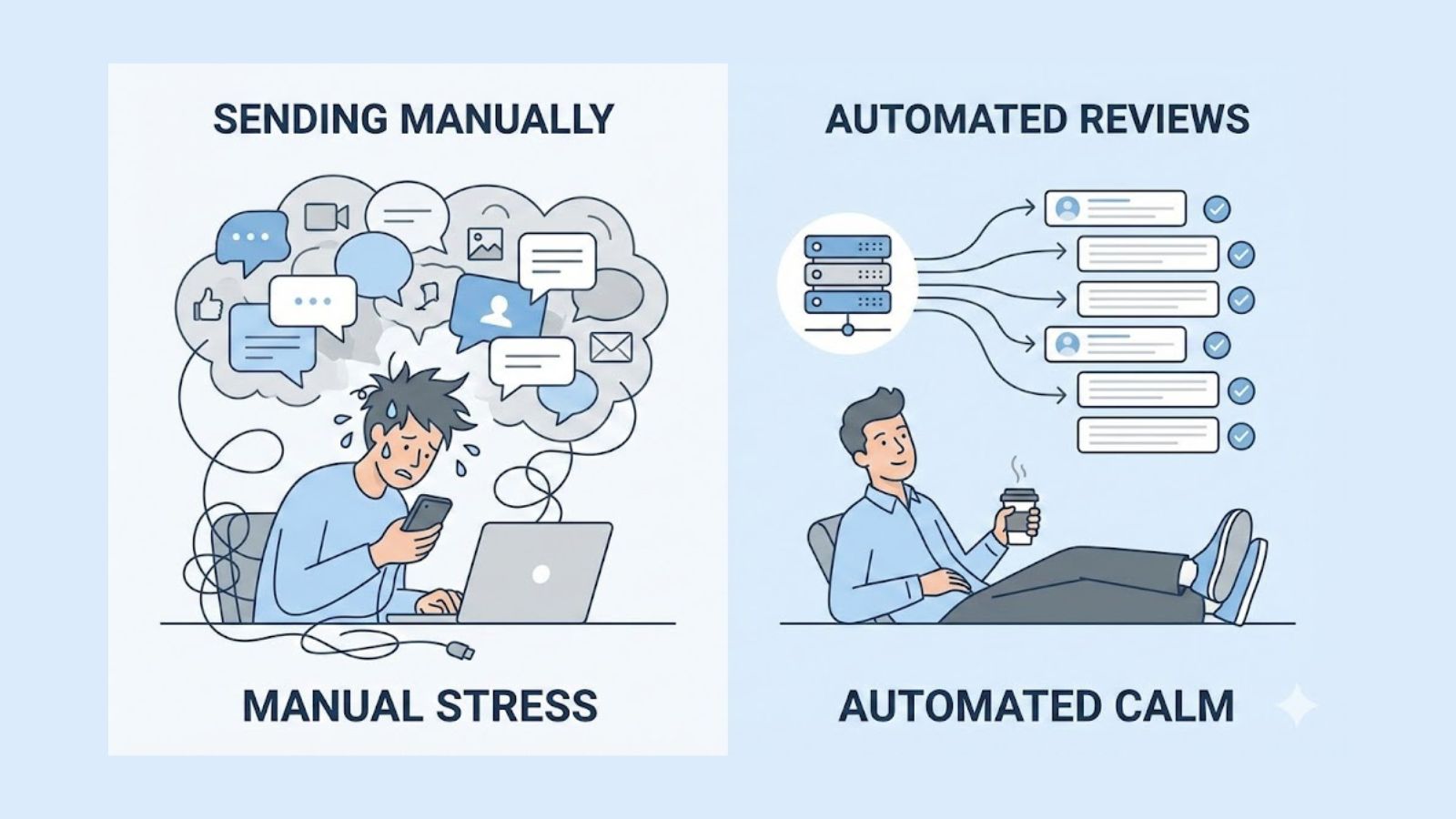
Manual vs automated review requests
With manual review requests, everything depends on memory and effort. A staff member has to remember to ask, remember to send a link, and remember who has already been asked. When people get busy, this is the first task that drops off the list.
With an automated approach, more of the work is built into your tools and touchpoints. The same script appears. The same NFC card or QR stand is used. The same email or SMS template is sent after certain jobs. People still have a choice, but your process does not rely on memory.
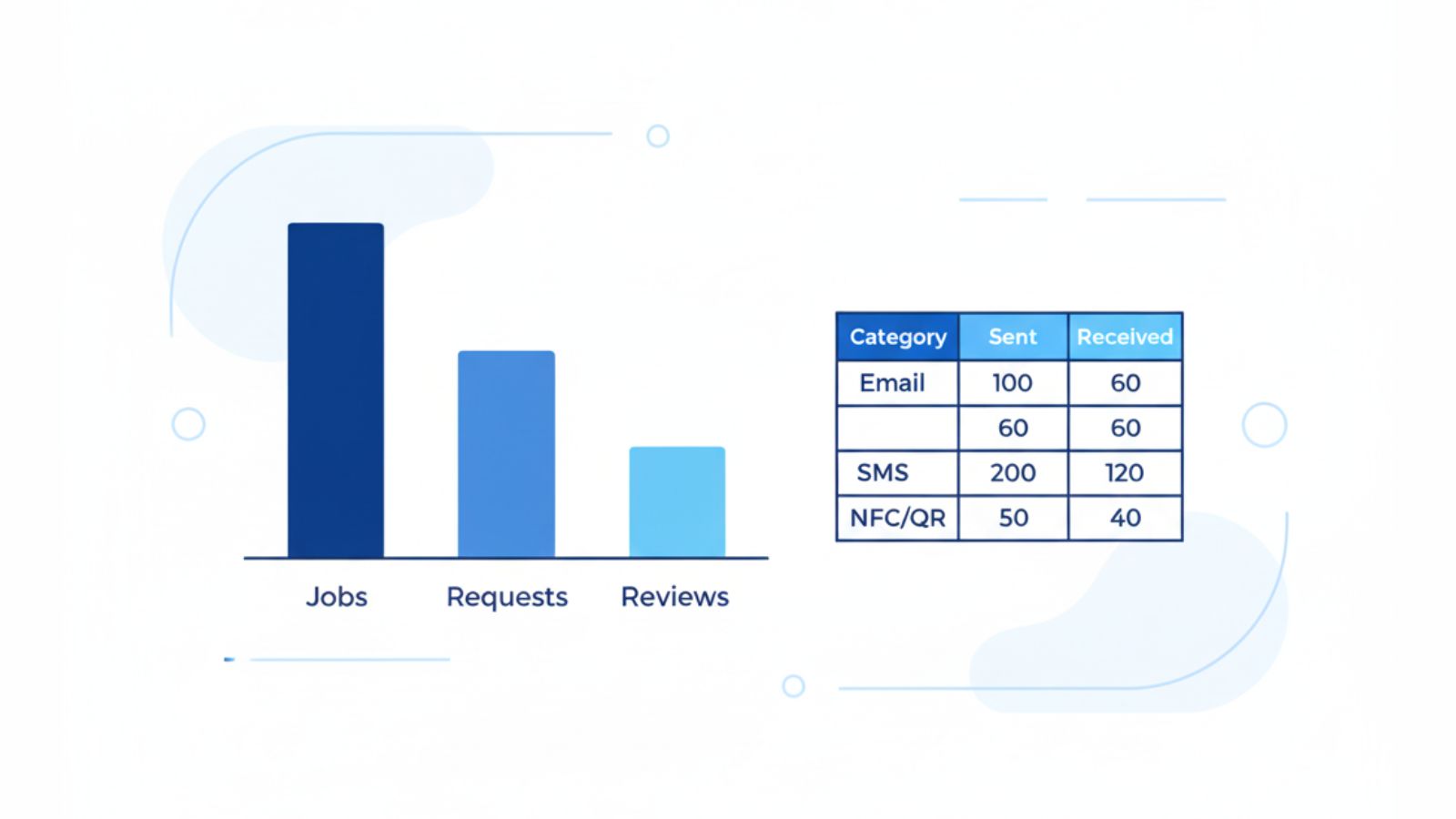
You can think about it as a simple funnel:
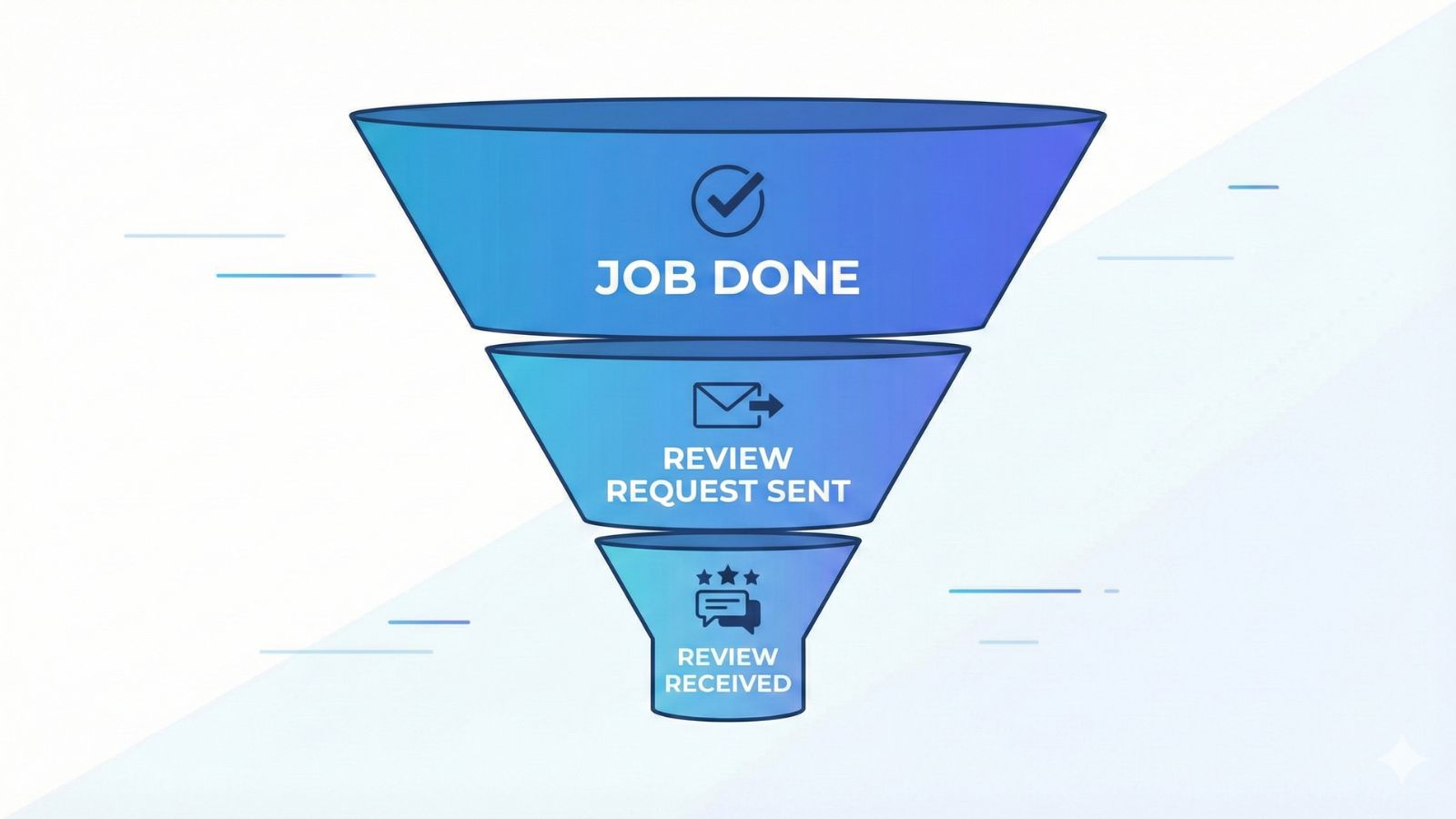
- Jobs completed
- Review requests sent
- Reviews received
Your aim is to send a request after as many suitable jobs as possible and to make that request easy to act on. If you send more consistent requests and remove friction, your review count grows without adding pressure on any one customer.
The four key parts of a simple review system
Every review system, even the simple ones, rests on four parts:
- Trigger – the moment that tells you it is time to ask for a review.
- Tool – what the customer taps, scans, or clicks to reach your review page.
- Timing – when the message appears relative to the service.
- Message – the short note that invites the review.
If one of these parts is weak, the others have to work harder. If all four are clear and consistent, you get more reviews from the same number of customers. In earlier posts we covered timing and wording in depth in:
- How to Get More Google Reviews Without Annoying Customers
- Why Customers Ignore Review Requests — and How Do I Fix It?
This article focuses on your tools and triggers, with a special focus on NFC and QR devices that work in the real world without extra software for Australian businesses.
Step 1: Fix your Google review link
Every automated review system starts with a solid link. If customers have to search your name, choose the right listing, and find a small review button, many will give up before they start.
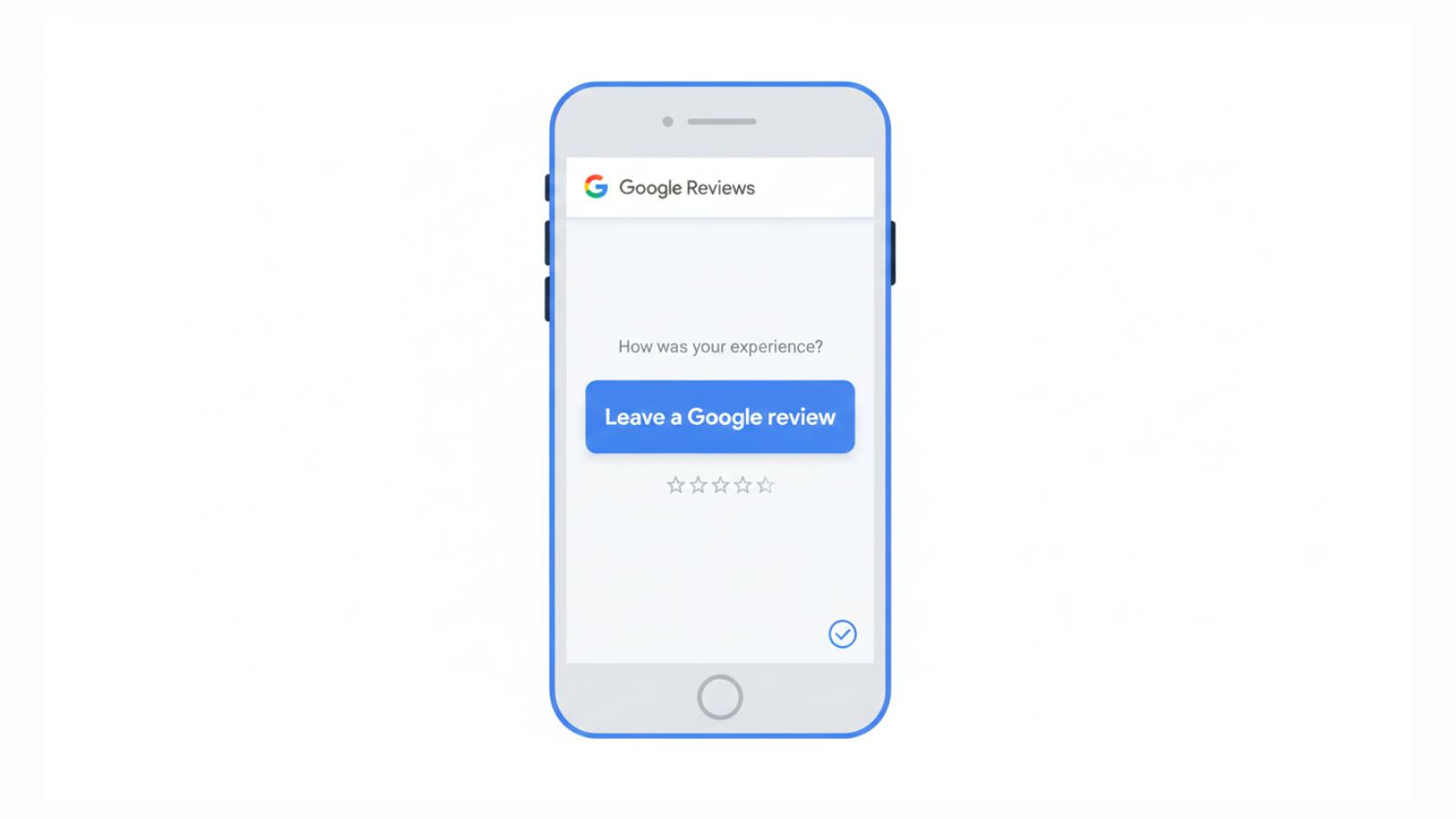
Inside your Google Business Profile dashboard you can generate a direct review link. This link opens your review box on most phones and makes the process simple. Once you have this link, you can use it everywhere:
- in your review request messages
- behind NFC review cards and plates
- in QR codes on stands and receipts
- inside email signatures and follow-up sequences
Step 2: Build “no software” automation in the real world
Before you adjust anything in your digital tools, make your physical space work harder for you. Simple NFC and QR devices can turn your counter, wall, or table into automation points that work every day without a keyboard or login.
Use NFC and QR review products in key spots
NFC and QR review devices connect the real world to your Google review page with a tap or scan. This removes the need for staff to look for a link or for customers to search.
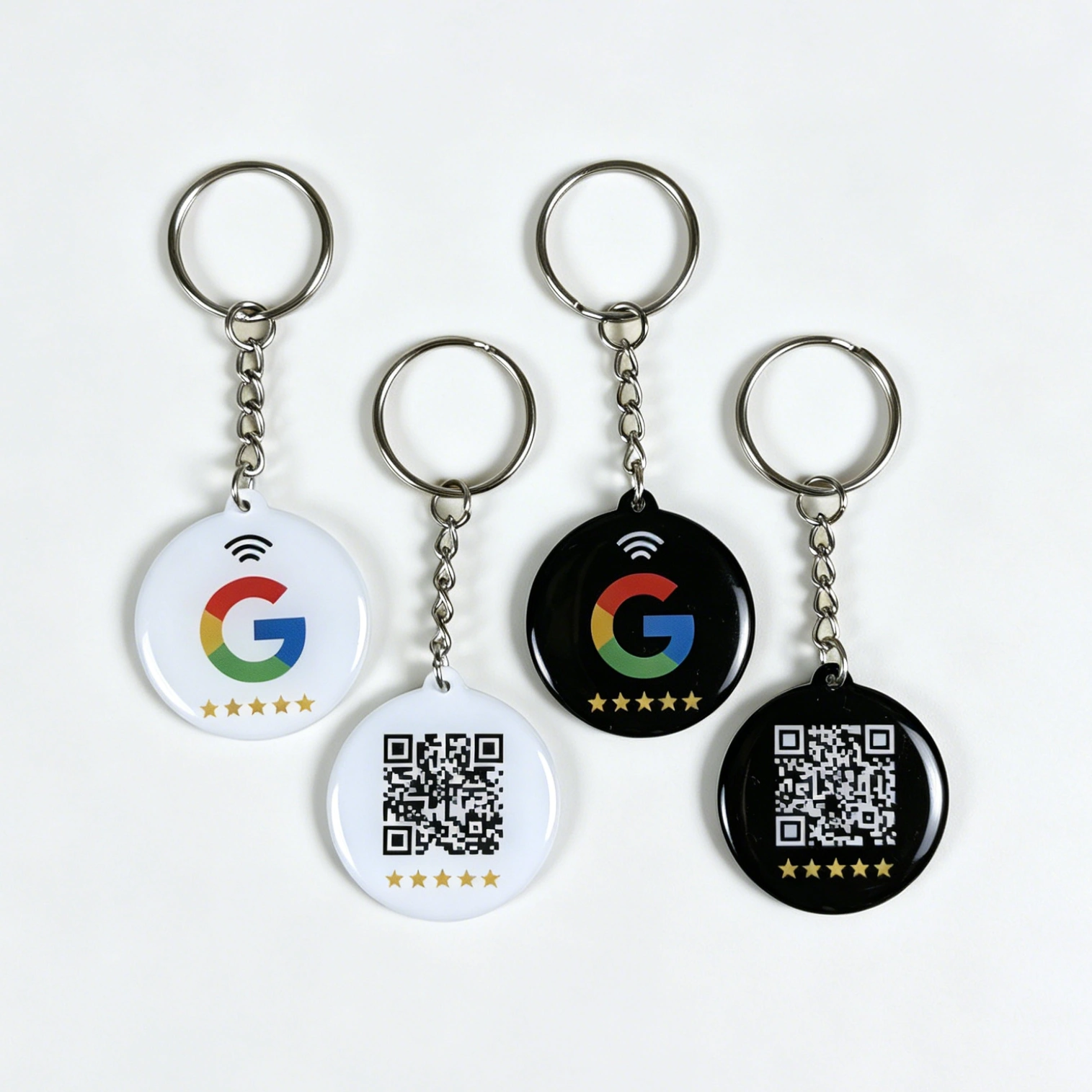
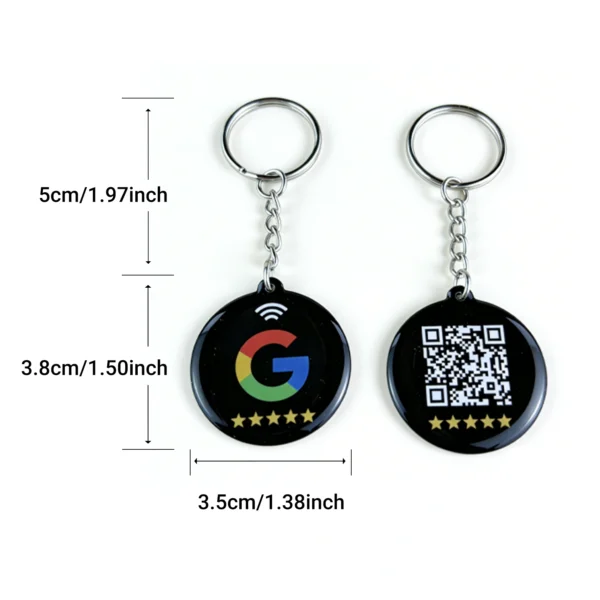
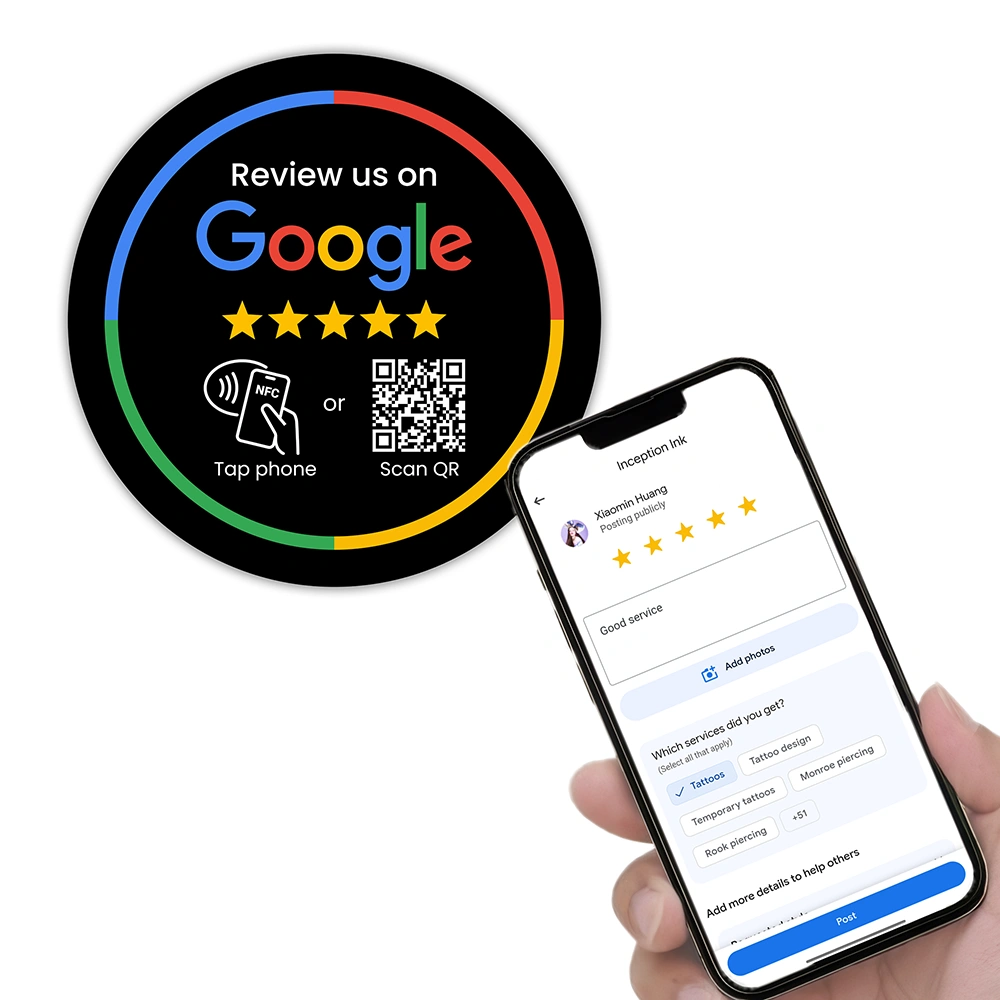
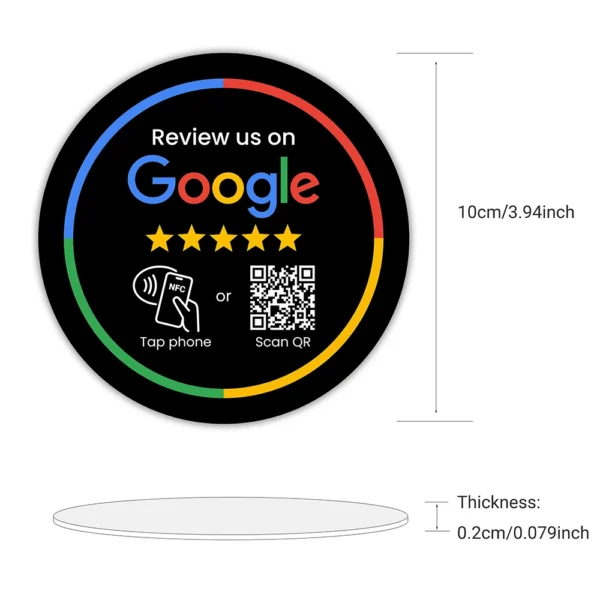
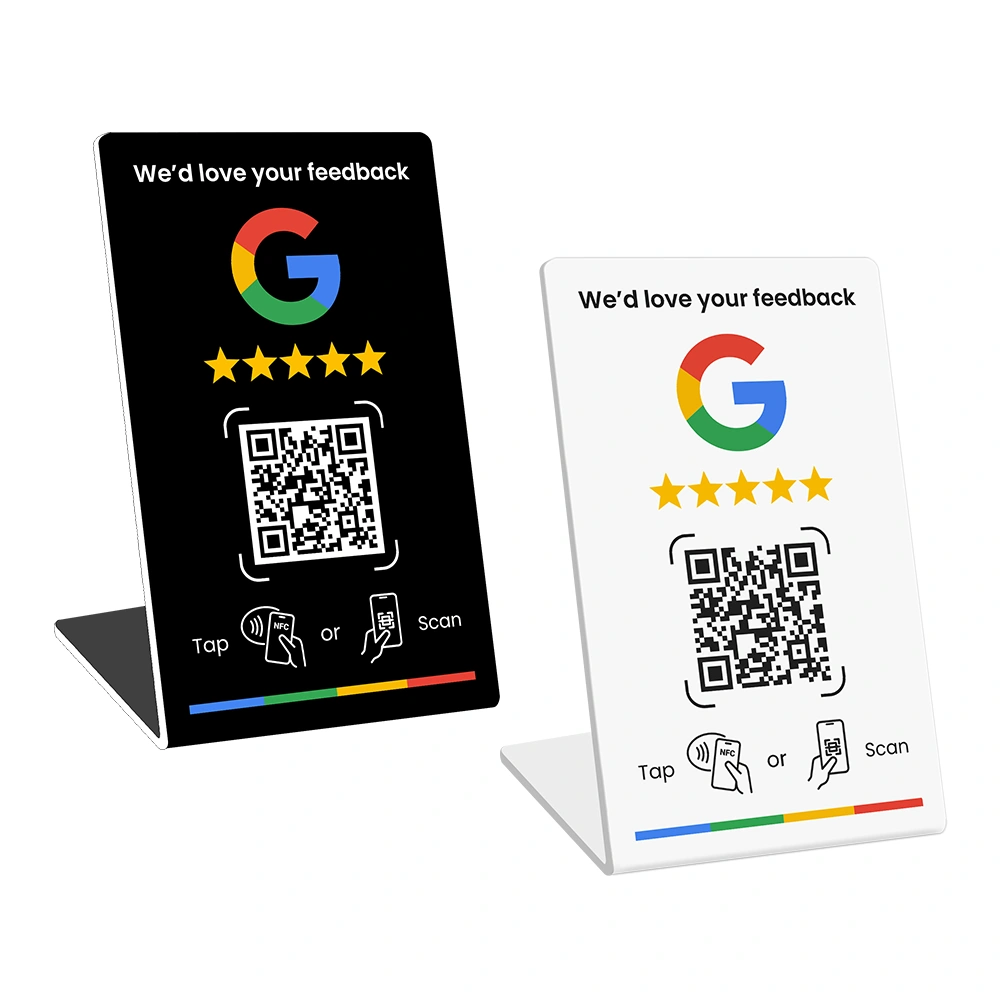
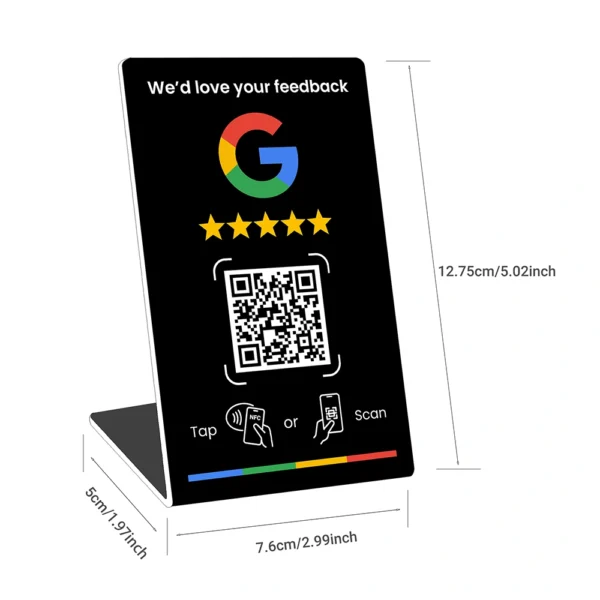
Examples from the REVIEWUP product range include:
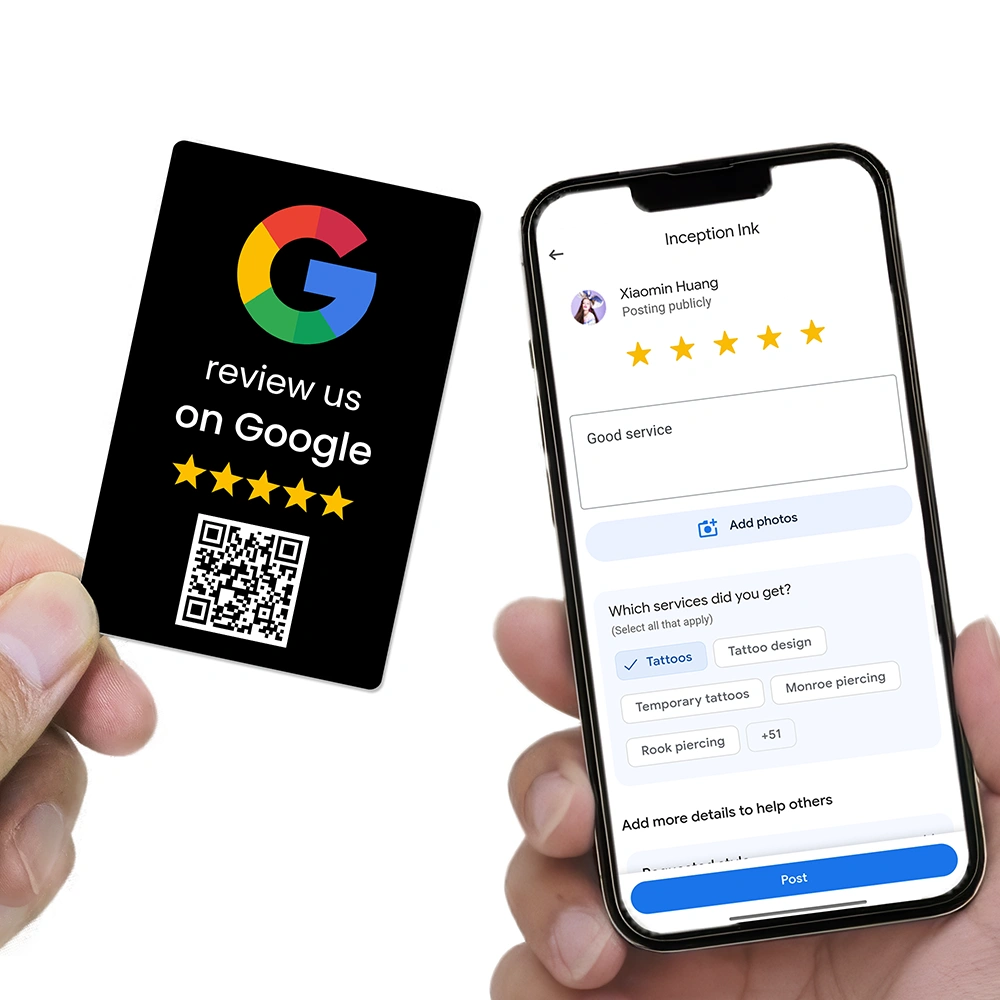
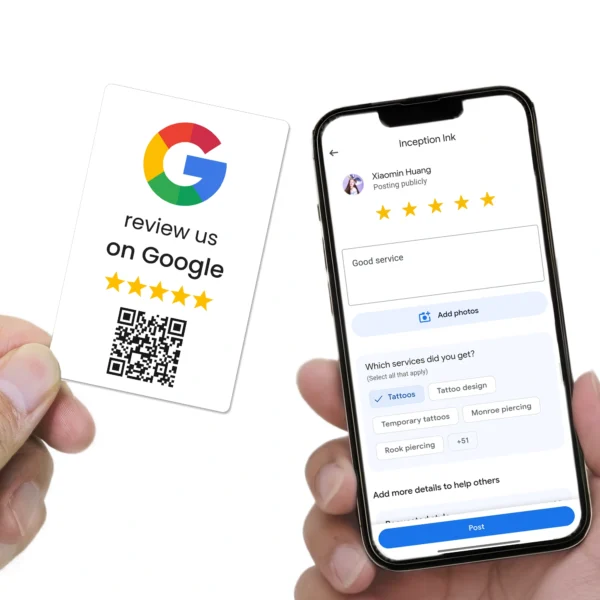
- Google Review Card that staff can hand to a customer after a good visit.
- Google Review Stand on counters near payment points.
- Google Review Plate on walls near exits, waiting areas, or reception.
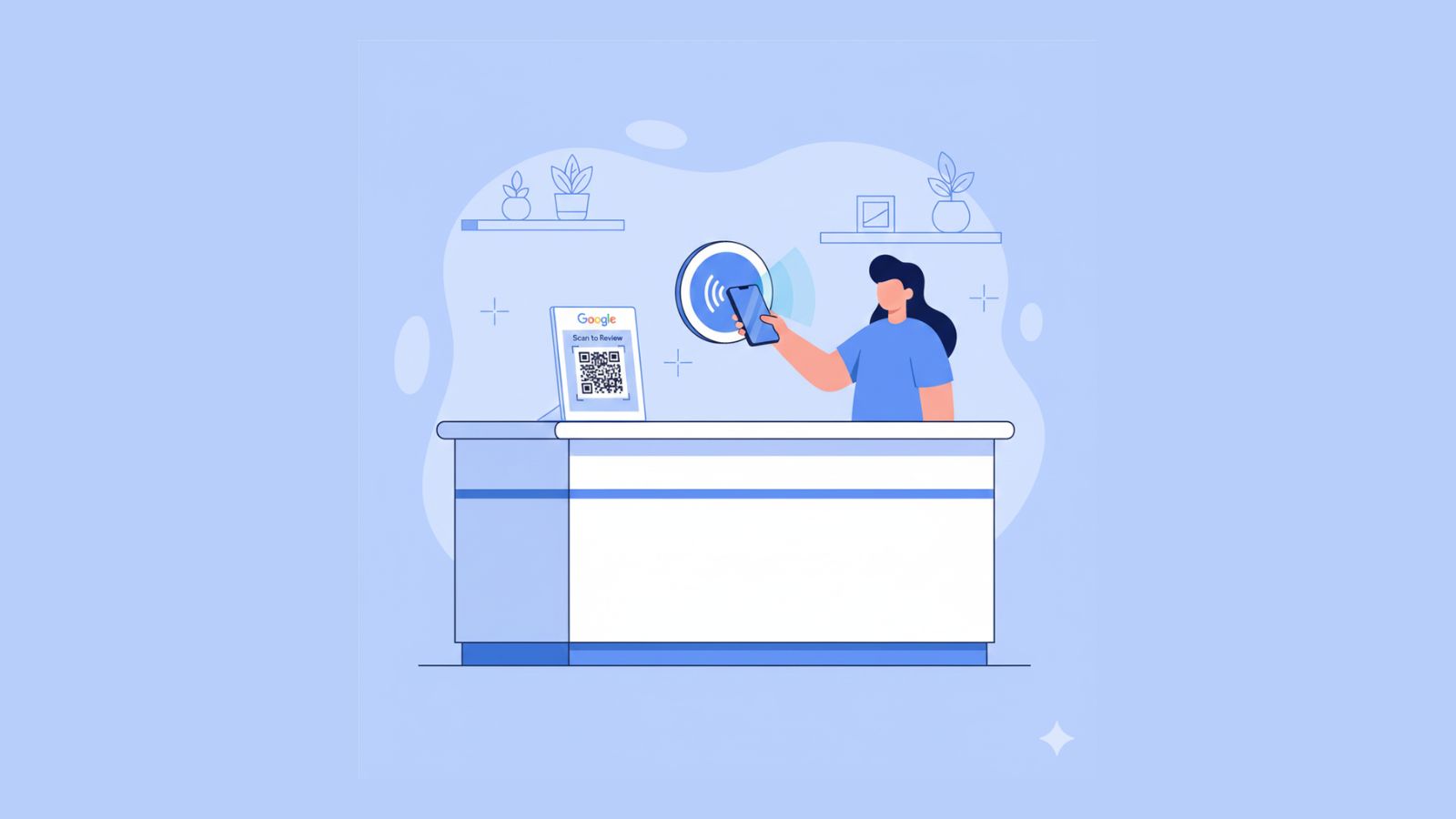
When staff mention these tools at the right time, you get a form of automation. The card, stand, or plate does the work of opening the review box and guiding the customer to the right place.
Create one simple staff script
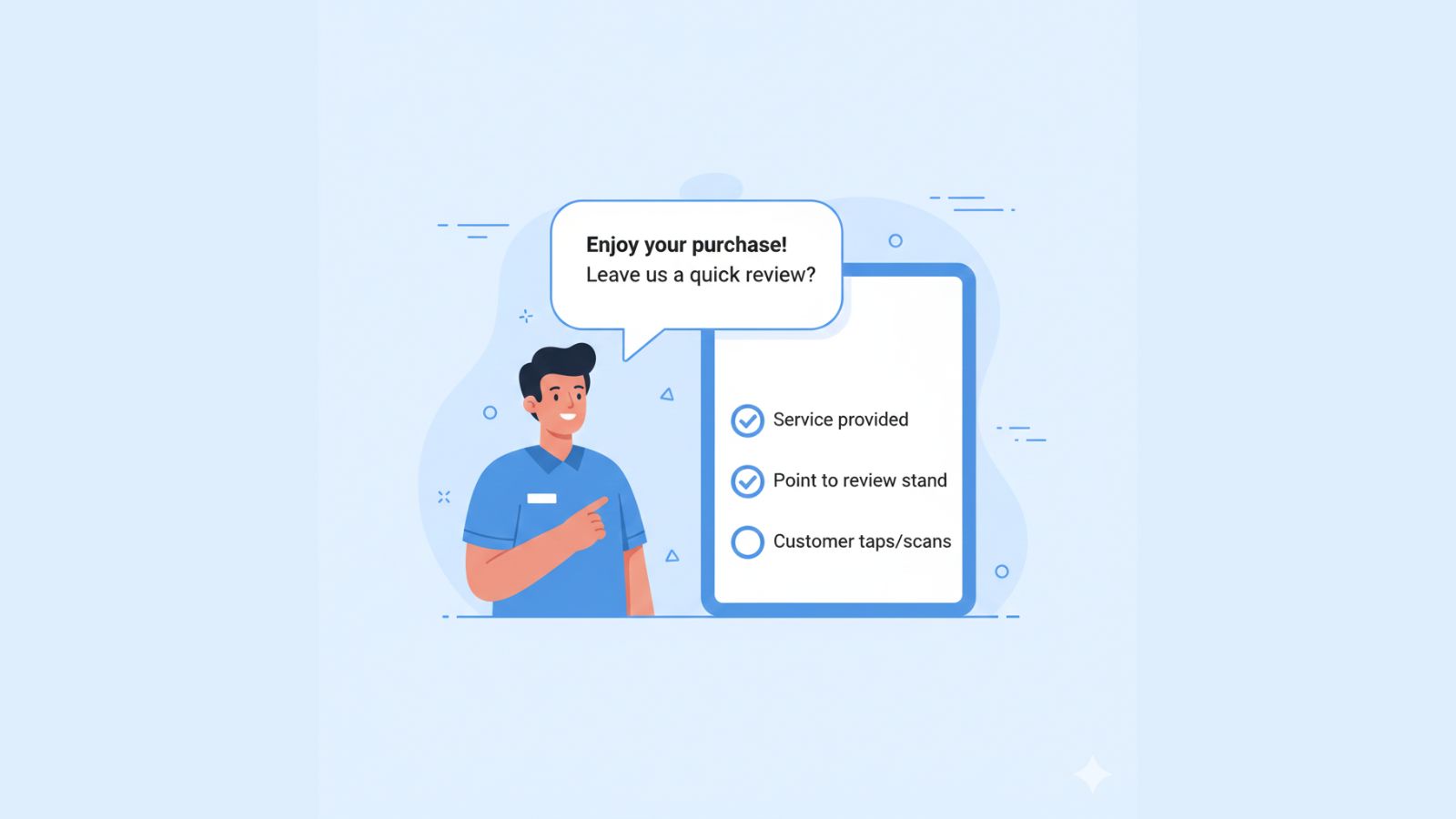
Even the best review stand will not work if nobody talks about it. Write a short script that any team member can use in their own words.
For example:
Keep it natural. Encourage staff to smile and say it in a way that fits them. The key is to ask regularly, not only when they remember.
Add review prompts to receipts and signs
You can add a line near the bottom of receipts, invoices, and small counter signs with a QR code or short link.
For example:
This gives you another automated path. Even if staff forget to ask out loud, the prompt still appears in front of the customer’s eyes.
Step 3: Use tools you already have for light automation
Once your physical space supports reviews, look at the tools you already use. Many booking systems, job management platforms, and email tools include simple features that can send review messages without extra work.
Email templates
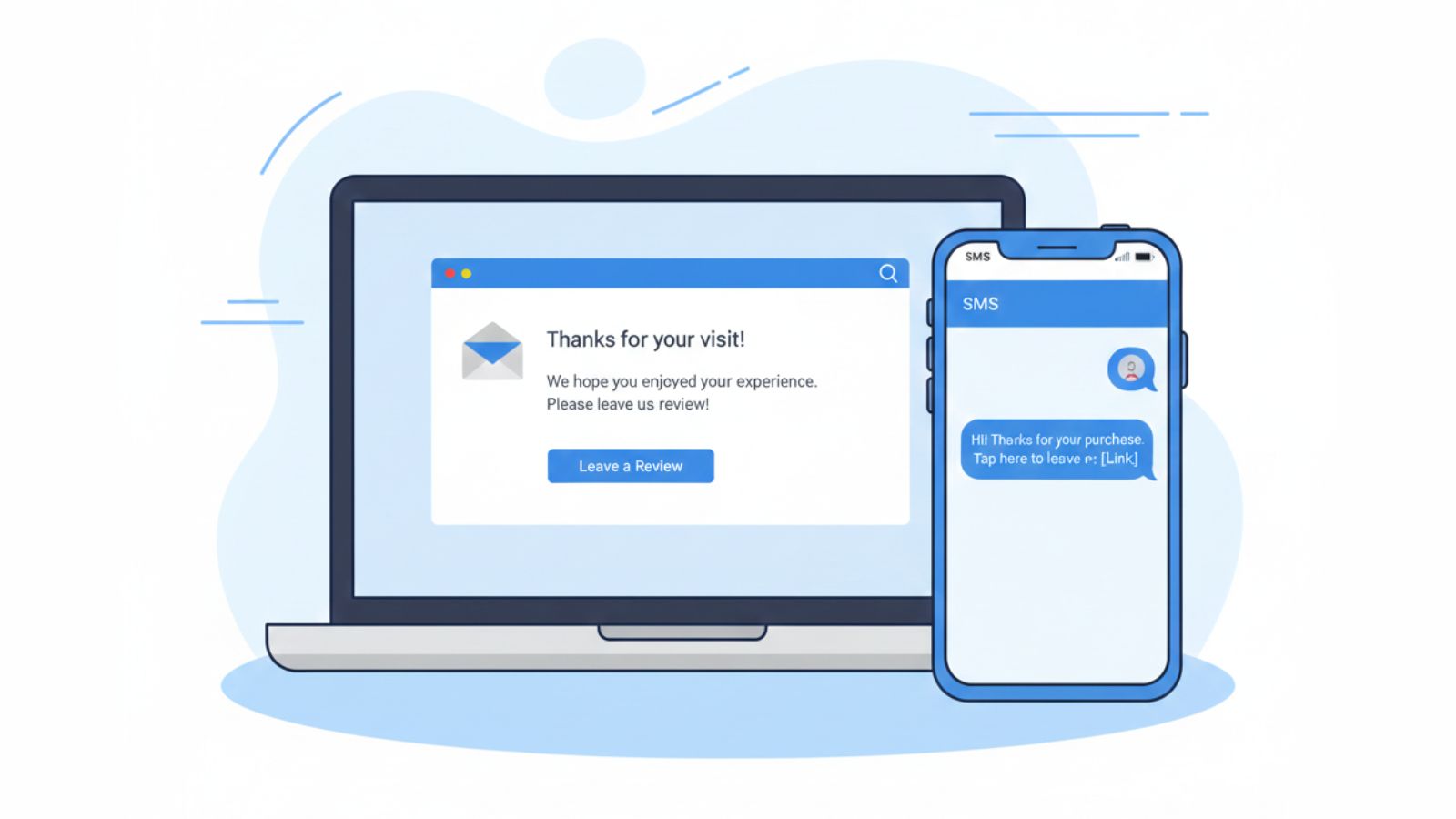
If you send invoices or follow-up notes by email, turn that into an automated review step. Create a short email template that includes your review link and save it inside your email tool or CRM.
Example structure:
- Subject: “Thank you from [Business Name]”
- First line: thank them by name
- Second line: mention the service or visit
- Third line: invite a quick Google review with a direct link
SMS templates
For trades and services where people are on the move, SMS can work well. Many job and booking tools let you store message templates.
Example SMS:
Trigger rules inside your systems
Many tools let you send a message when a job moves to a certain status, such as “completed” or “paid.” You can attach your review template to that event so messages go out at a consistent point in the journey.
This is still “no software” in the sense that you are using what you already pay for. You do not add another platform. You simply connect your existing work steps with your review message.
Example automation flows for different business types
The right approach for a Fitzroy cafe is different to the right approach for a plumber in Western Sydney. Here are four simple flows you can adapt for your part of Australia.
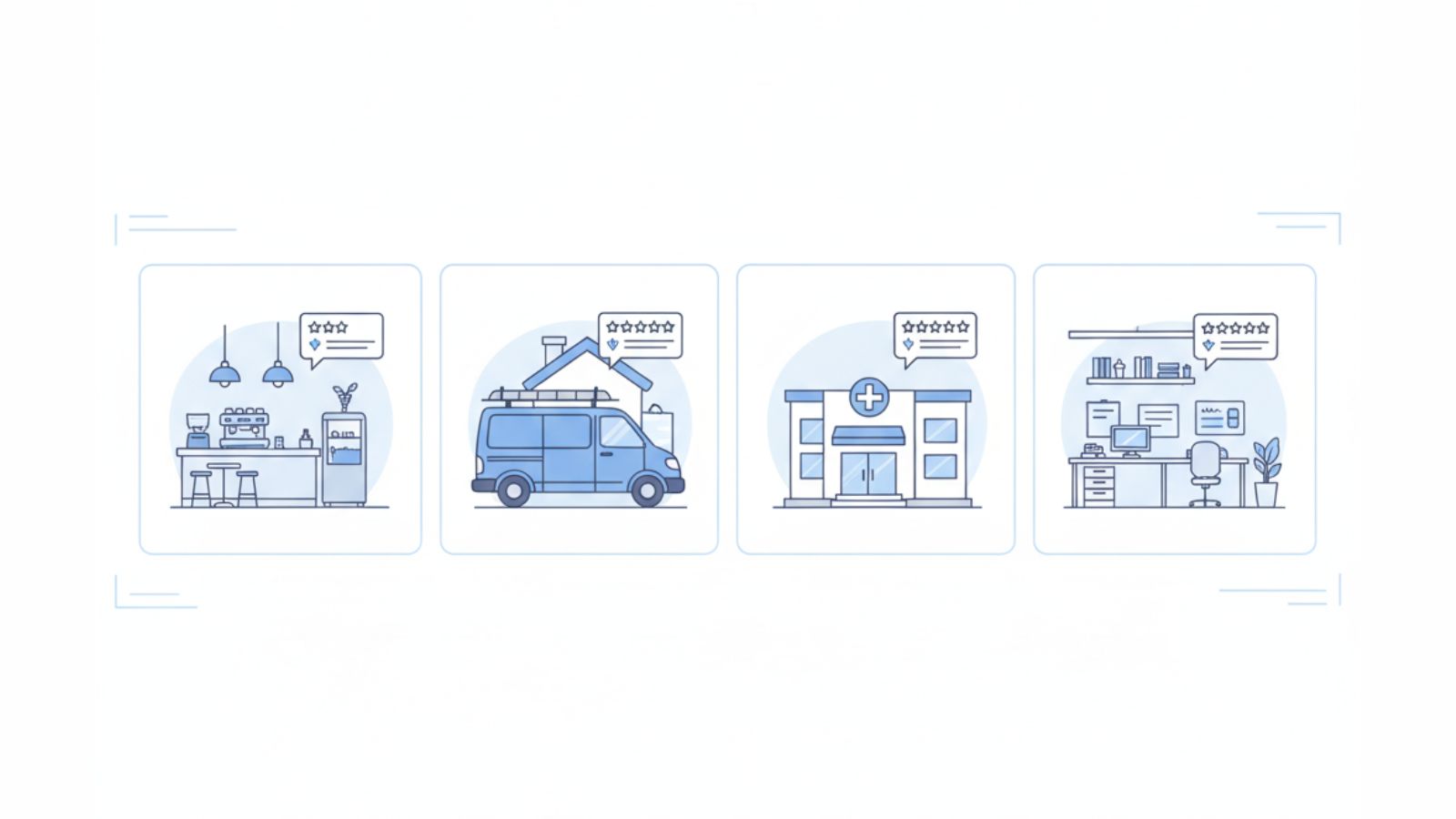
Cafes and casual dining
- Trigger: after a positive interaction at the counter or table.
- Tool: review stand on the counter and review plate on the wall near the exit.
- Timing: staff mention the review as the customer pays or collects their order.
- Message: short script plus visual sign at the counter.
Salons and clinics
- Trigger: at checkout or just after the treatment finishes.
- Tool: NFC review card handed over with the receipt and a review stand at the front desk.
- Timing: a warm verbal ask plus a same-day email template with the review link.
- Message: thank them by name and link the review to helping new clients feel safe choosing you.
Trades and home services
- Trigger: job marked as complete in the job system.
- Tool: SMS template with direct review link plus a physical review card left with the customer.
- Timing: message sent within 24 hours of the job finishing.
- Message: mention the specific work and how reviews help other local homeowners choose the right provider.
Professional services and offices
- Trigger: when a clear outcome is delivered, such as a completed project or advice session.
- Tool: email template inside your CRM, with the direct review link and your logo.
- Timing: sent within one or two days of the outcome.
- Message: clear, friendly, and short, with an honest review request.
What to avoid when you automate review requests
Automation can help you send more review requests with less effort. It can also create problems if you push too far or break Google’s rules. A few points need special care.
- Do not offer rewards for reviews
Avoid discounts, prizes, or gifts in exchange for reviews. This can breach Google’s policies. - Do not ask only happy customers
Try to ask most customers in a fair and consistent way. - Do not send too many reminders
One reminder after the first message is usually enough. - Do not ask for a “5 star review”
Invite an honest review and let customers choose their rating.
You can read Google’s review policy in full here:
Google Business Profile review policy
Numbers to track for your review system
To see whether your automation is working, track a few simple numbers each month:
- Jobs completed
- Review requests sent
- Reviews received
Then work out your basic response rate:
Review response rate = reviews received ÷ review requests sent.
What to read next about Google reviews
If you want to take your review system further, these guides build on what you read here:
- How to Get More Google Reviews Without Annoying Customers for tone and approach.
- Why Customers Ignore Review Requests — and How Do I Fix It? for common failure points.
- How Local SEO Helps You Get More Google Reviews for the link between reviews and local rankings.
If you are ready to add NFC and QR tools to your automation plan, you can explore review cards, plates, and stands built for Australian businesses at REVIEWUP.com.au. These products turn more of your daily customer traffic into a steady flow of Google reviews.
FAQs about automating Google review requests
Do I need special software to automate Google review requests?
No. You can get strong results by using your direct Google review link, NFC and QR review tools, simple staff scripts, and the email or SMS tools you already have.
How many review reminders should I send?
One reminder after the first review request is usually enough. More messages can feel repetitive and may reduce goodwill.
Is SMS better than email for automated review requests?
SMS often works better for quick services and trades, while email fits longer or more formal services. The best channel is the one your customers already expect from you.
Can I offer rewards for leaving a review?
You should avoid rewards in exchange for reviews. Focus on honest feedback, clear links, and a smooth path instead.
What is the most important part of a review automation system?
The most important part is consistency. A simple system that runs every week is better than a complex plan nobody follows.
Written for Australian small and local businesses.