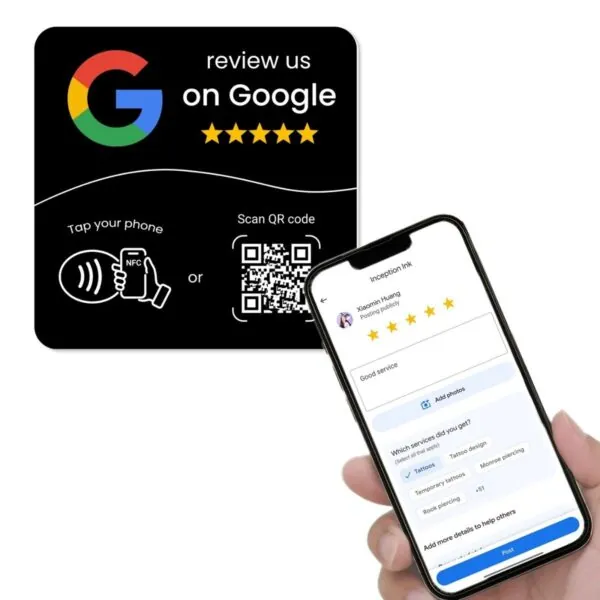
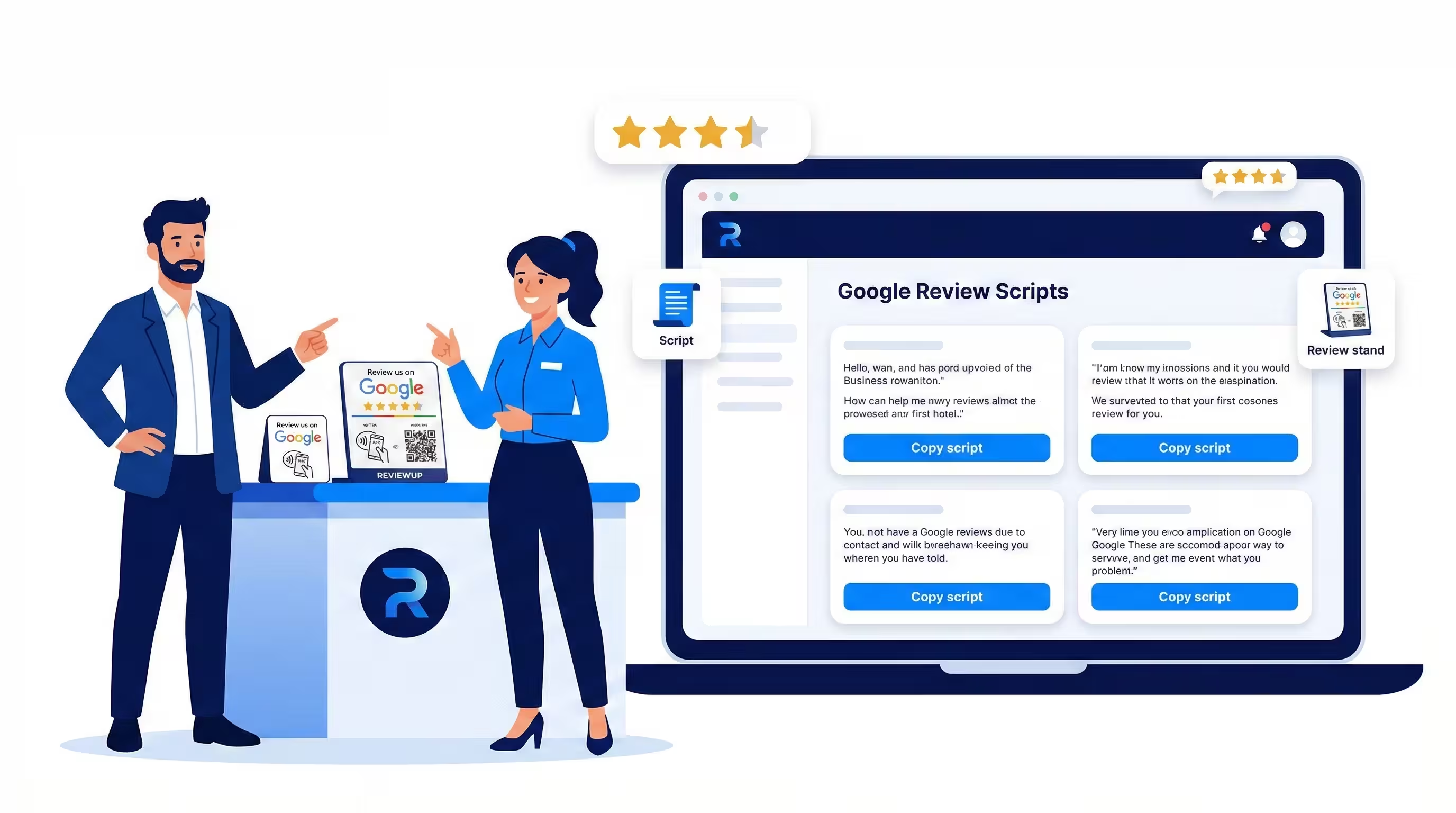
Most business owners know they should “ask for more Google reviews”, but many staff feel awkward or unsure about what to say. The result? Great customer experiences walk out the door without ever becoming Google reviews for your business.
That’s where simple, well-written scripts can help. You don’t want your team to sound like robots, but giving them a few proven starting points makes it much easier to ask confidently and naturally. Combine those scripts with good service, the right review tools (stands, NFC cards and plates) and organised google review management tools, and you’ve got a system that works every day – not just when you remember.
In this guide, you’ll get 12 ready-to-use staff scripts tailored to common Australian industries, plus advice on when to use them, how to adapt them and how to track performance using review management software like REVIEWUP’s portal.
Quick summary
- Staff often know they should ask for reviews, but don’t know how – scripts remove that friction.
- This article gives you 12 copy-and-paste scripts for tradies, hospitality, retail, health & beauty, professional services and automotive.
- Each script is designed to sound natural, ask for honest feedback and avoid pushing for “5 stars only”.
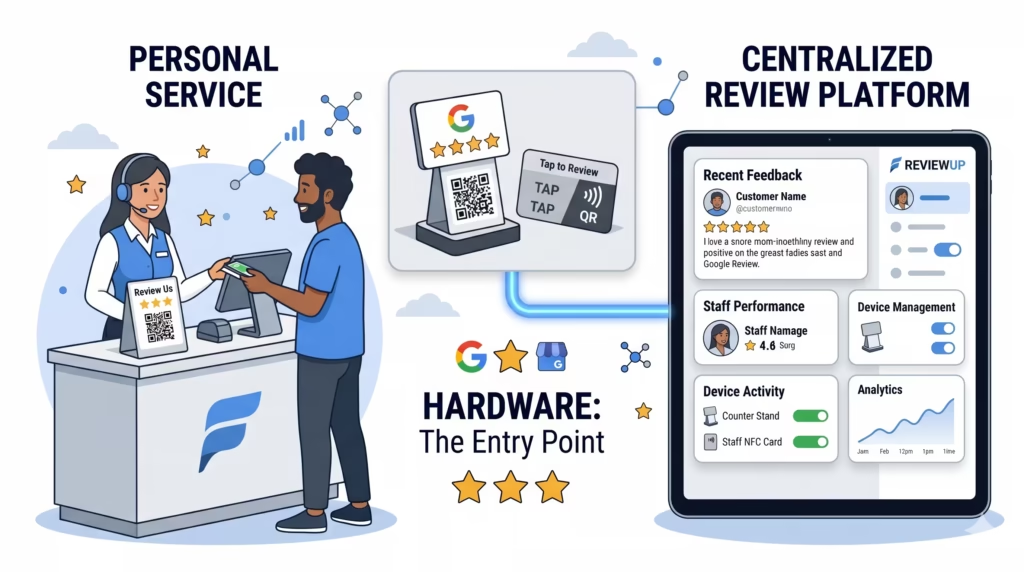
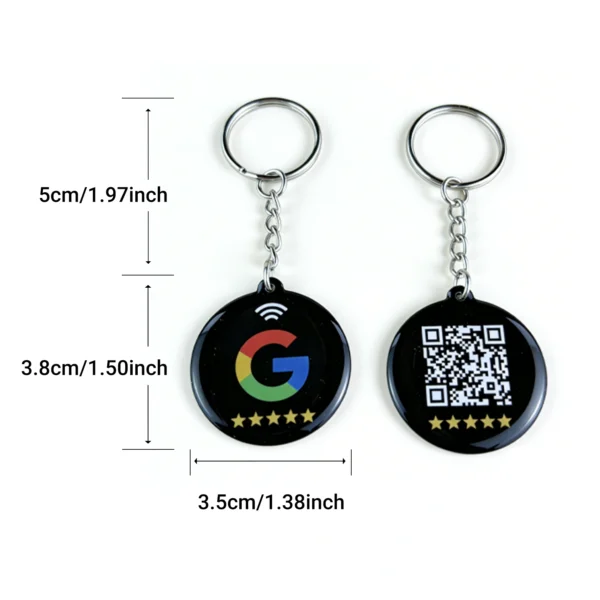
- Using Google review stands, NFC cards and plates makes it easier for customers to act on the spot.
- When you connect those tools to REVIEWUP’s google review management software, you can assign devices to staff and track which scripts and touchpoints are working best.
1. Why simple scripts help staff ask for Google reviews
Even the best staff can freeze up when it’s time to ask for a review. They worry about sounding pushy, annoying customers or saying the wrong thing. A good script:
- Gives them a proven starting point they can lean on.
- Uses natural language that fits your brand and industry.
- Reminds them to point to your Google review stand, NFC card or plate so customers can act in seconds.
- Takes the focus off “begging for 5 stars” and onto honest feedback.
Scripts shouldn’t turn staff into robots. Think of them as training wheels – a safe way for people to learn the rhythm of asking for reviews until it becomes second nature.
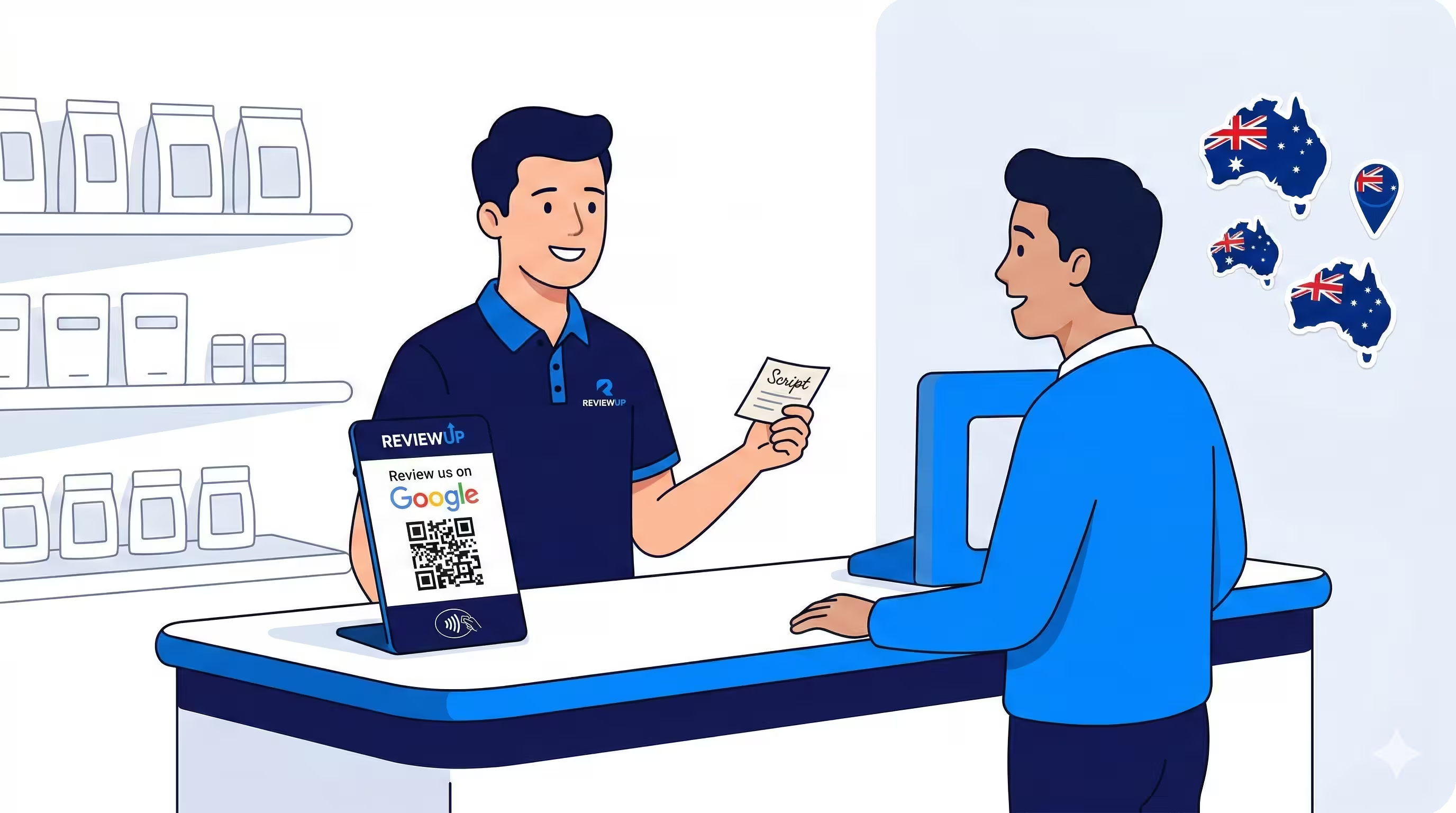
2. How to use these scripts without sounding robotic
Before we dive into the scripts, a few ground rules will help them land well with customers.
2.1 Pick the right moment
The best time to ask is when the customer has just had a positive, finished experience with you:
- Tradies: after the customer has seen the work and you’ve answered their questions.
- Cafés and restaurants: when bringing the bill or at the counter on the way out.
- Retail: after helping them choose or once they’ve paid.
- Clinics and salons: after the appointment when they’re at reception.
- Professional services: after a successful meeting or when sending a wrap-up email.
- Automotive: when handing back the keys and explaining what you’ve done.
2.2 Keep it calm and honest
Each script is written to ask for honest feedback on Google, not “5 stars only”. This keeps you within Google’s guidelines and feels much more respectful to customers.
2.3 Combine scripts with your review tools
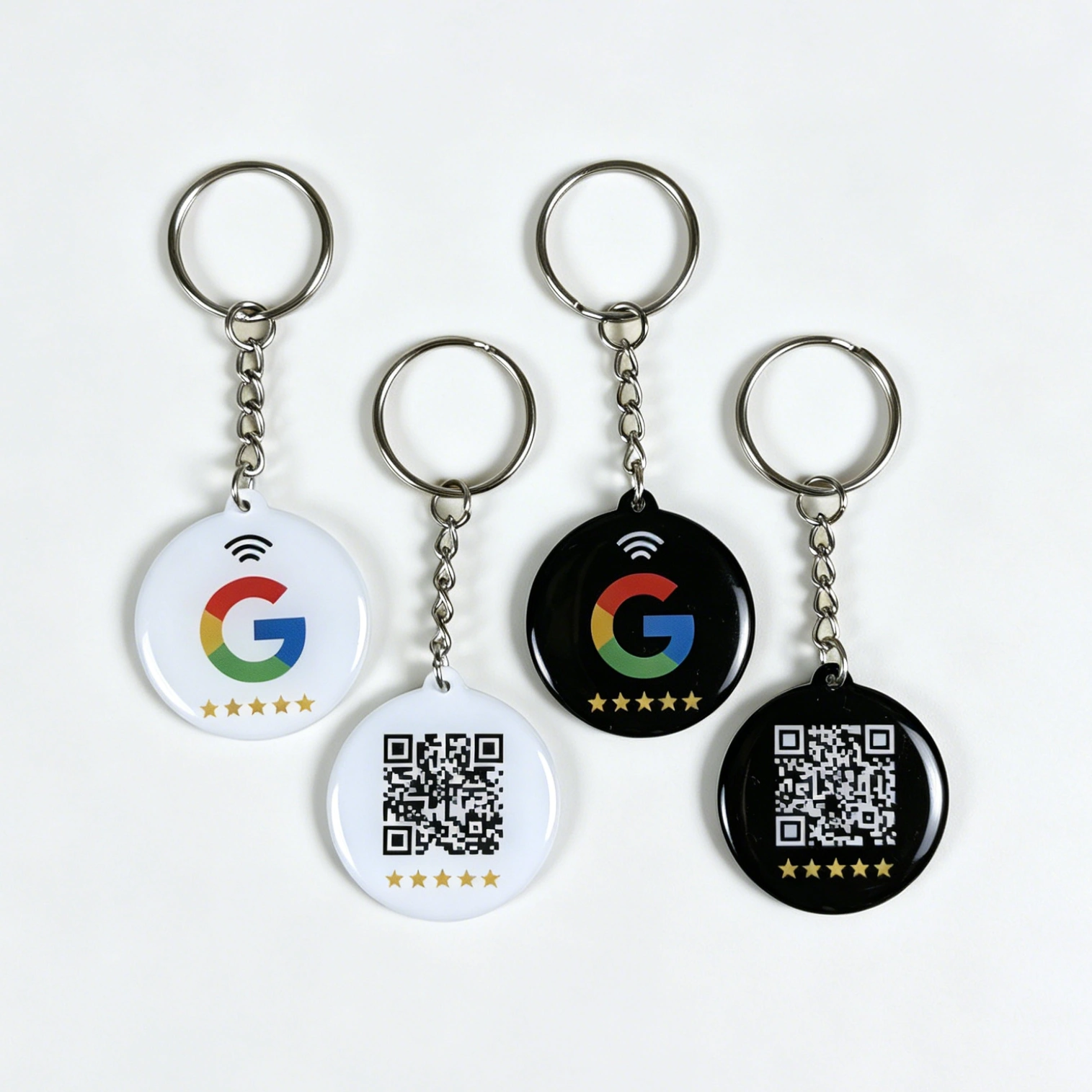
These scripts assume you’re using physical tools like:
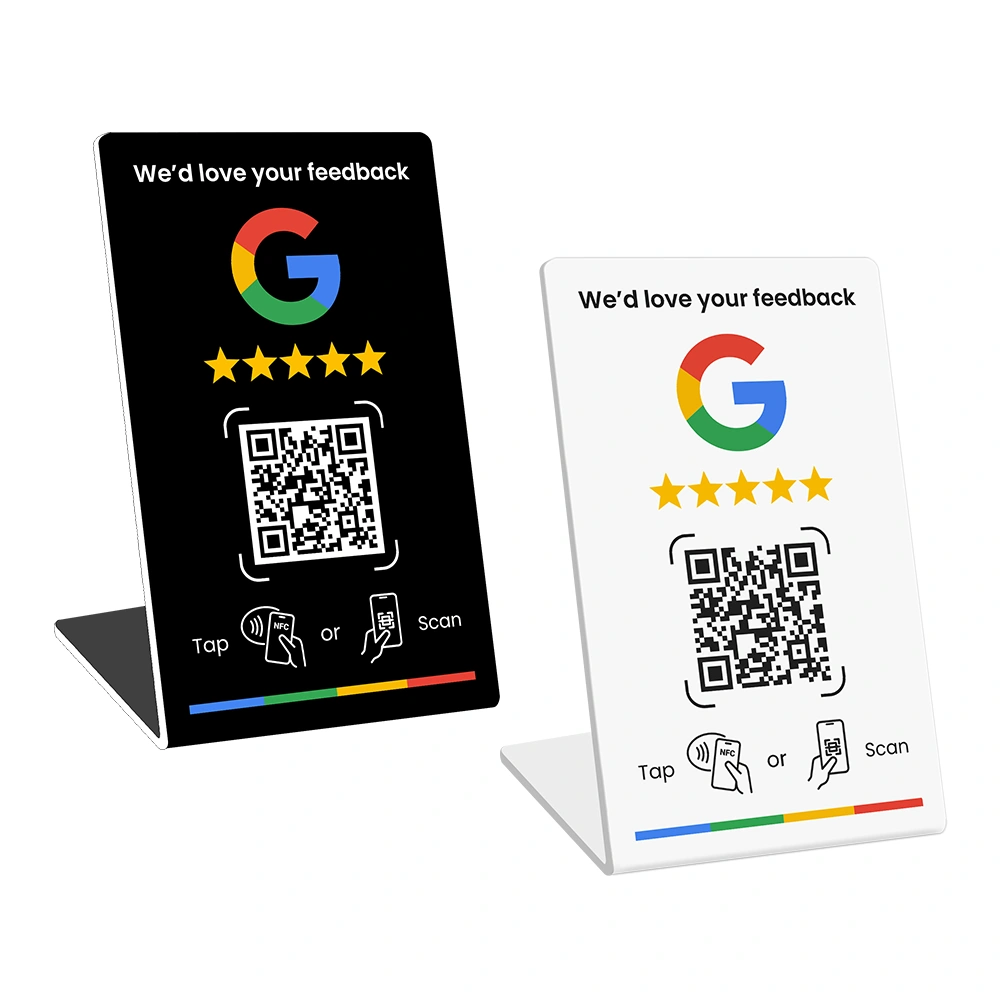
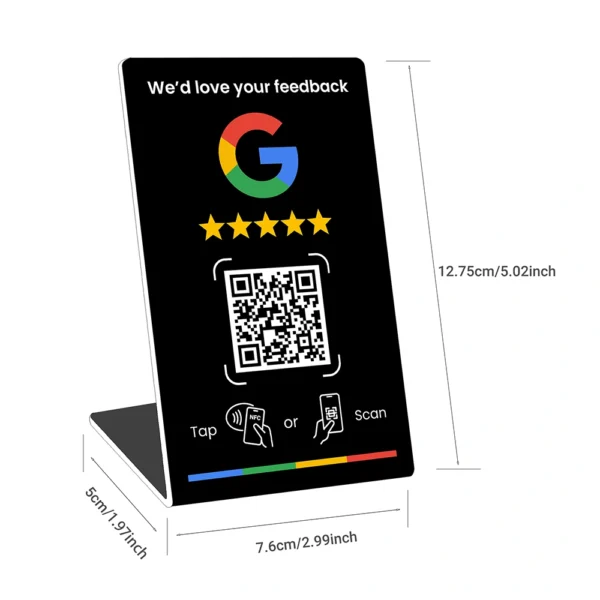
- Google review stands on your counter.
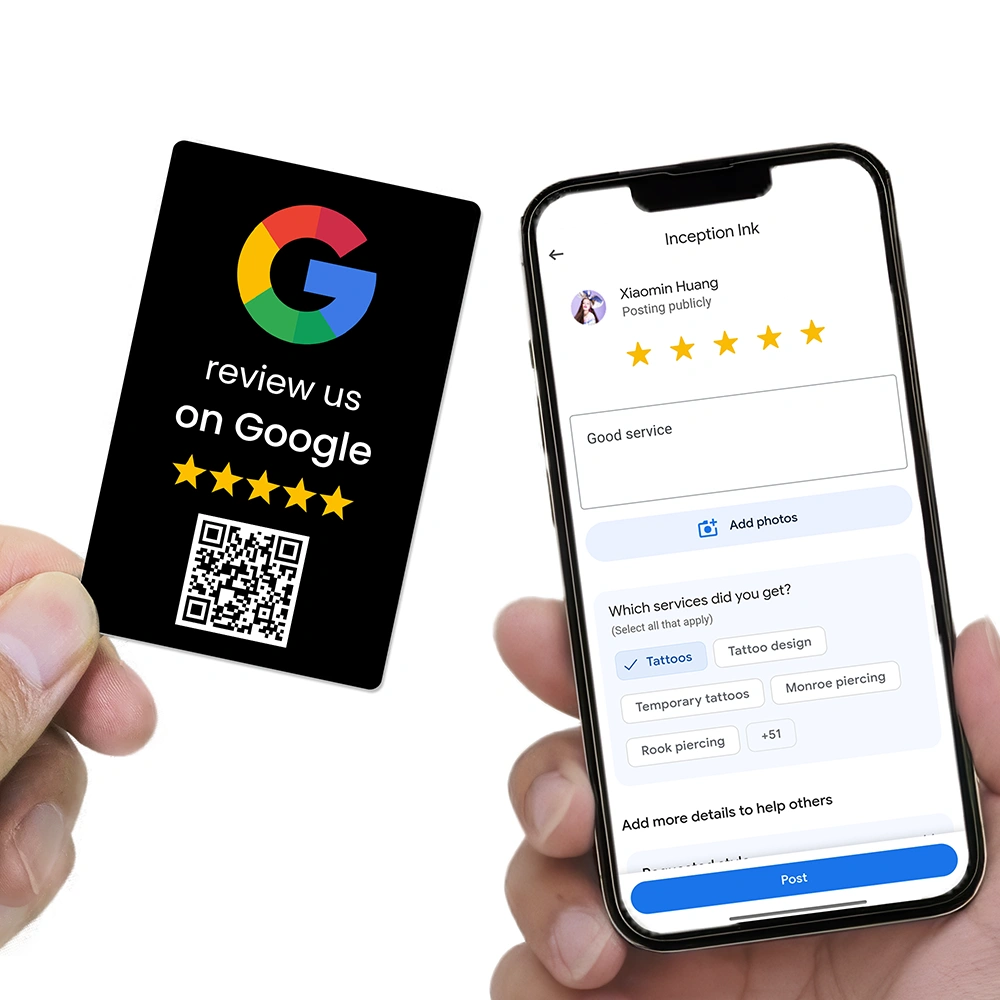
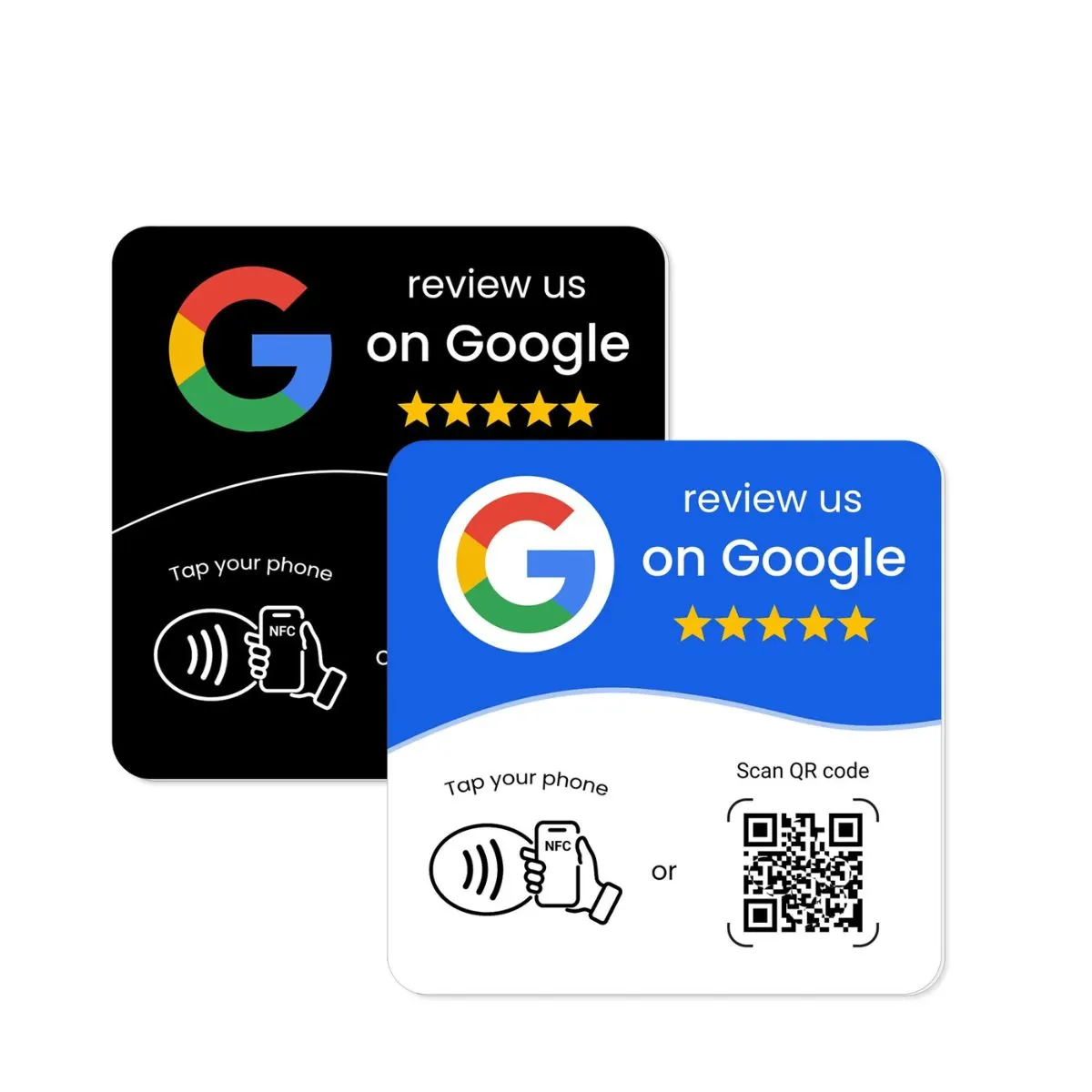
- NFC Google review cards your staff can carry.
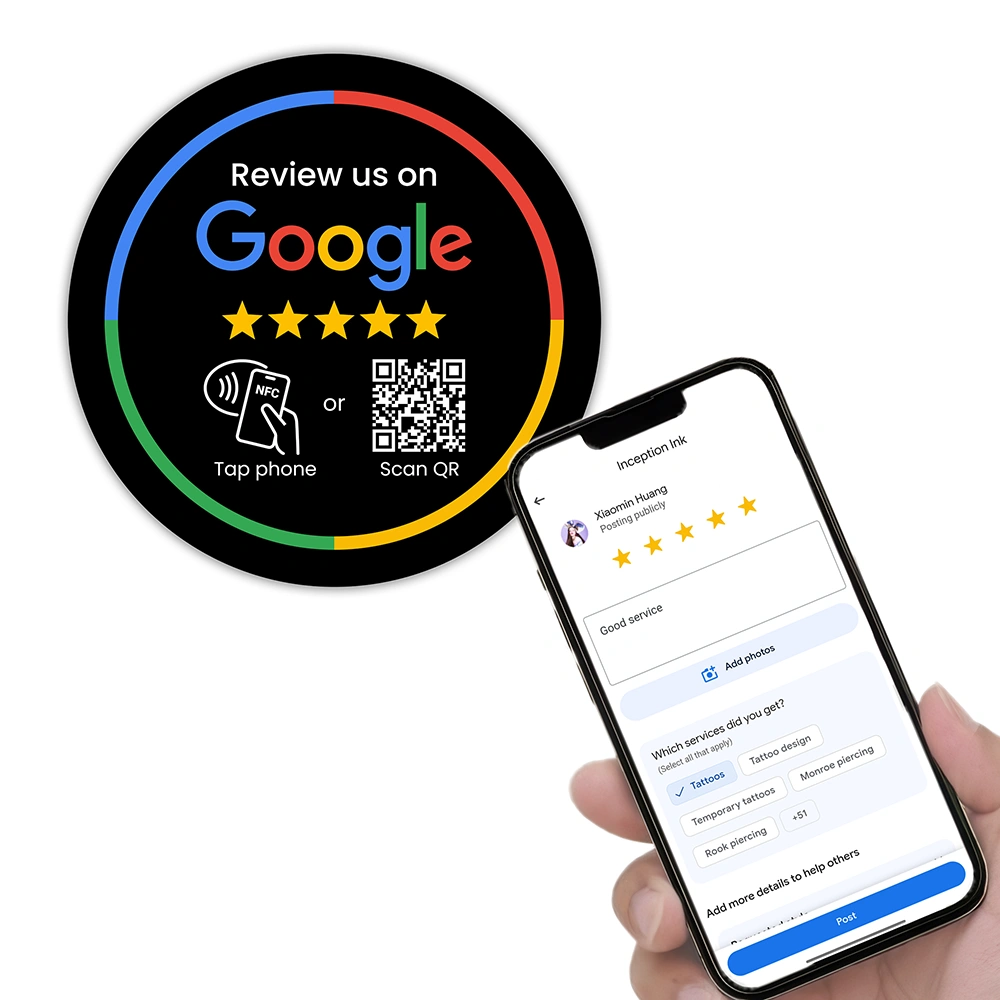
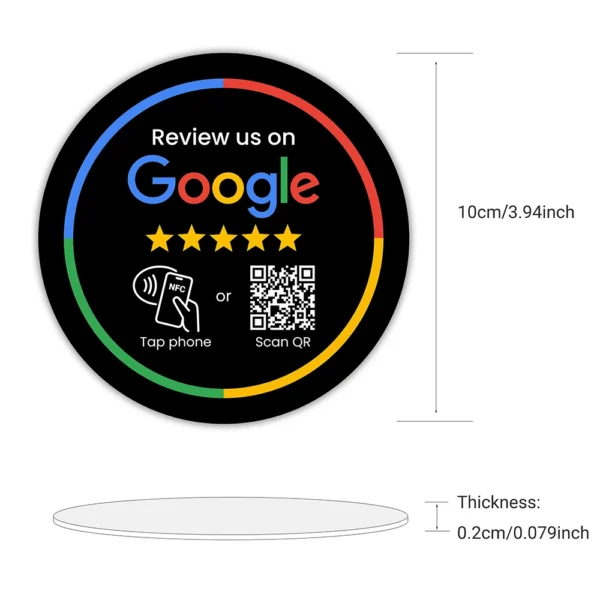
- Google review plates mounted where customers naturally wait.
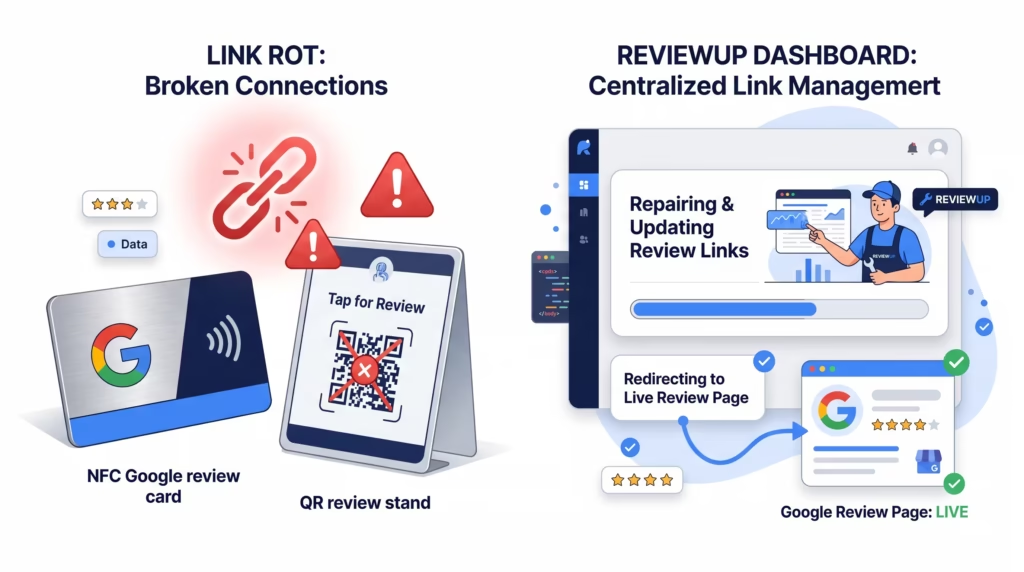
Those tools become much more powerful when they’re connected through REVIEWUP’s google review management tools and portal, so each tap or scan goes to the right Google review link without having to reprogram tags manually.
Start with one script per situation and let staff tweak the wording slightly so it feels like their own voice. Small changes in tone can make a big difference in comfort and authenticity.
3. Copy-and-paste Google review scripts by industry
Below you’ll find 12 scripts across six common industries. Each one is designed for in-person use, with a version that mentions your NFC/QR tools.
You can click the Copy button on any script to copy it word-for-word, then paste it into training docs, staff WhatsApp groups or your own internal handbook.
3.1 Tradies & home services (plumbers, electricians, cleaners)
Script 1 – After the job is finished (on site)
Thanks again for having us out today. If you’re happy with the job, we’d really appreciate an honest Google review – it helps other locals know what to expect. I’ll send you our review link shortly, it only takes a minute.
Script 2 – Pointing to NFC card or plate
Before I head off, if you’ve got a spare minute, you can tap or scan this card to leave us a quick Google review. Honest feedback really helps us and it also helps other people around here choose the right tradie.
3.2 Hospitality (cafés, restaurants, takeaways)
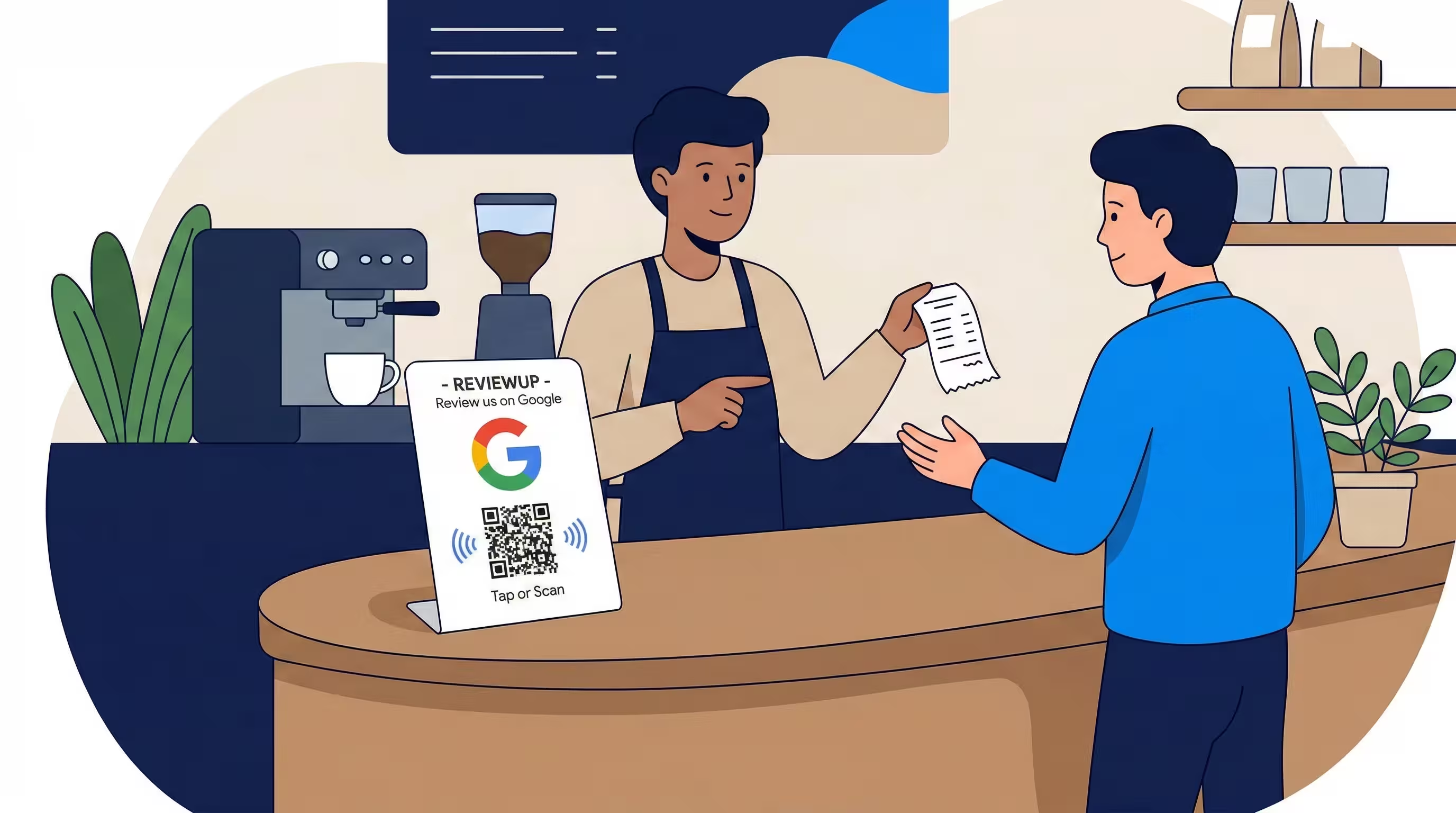
Script 3 – At the counter or when presenting the bill
Thanks for coming in today – we really appreciate it. If you enjoyed everything, we’d love an honest Google review when you have a moment. It really helps a small place like us stand out in the area.
Script 4 – Pointing to a Google review stand on the counter
If you’ve got your phone handy, you can tap or scan this stand to leave us a quick Google review. It only takes a minute and really helps other locals find us.
3.3 Retail & shops
Script 5 – After helping a customer find the right product
Glad we could find what you were looking for today. If you’re happy with the service, we’d really appreciate an honest Google review – it helps other shoppers know they’ll be looked after here too.
Script 6 – At the till with a review plate or stand
While I finish this up, if you’d like to leave us some feedback, you can just tap or scan this review plate to leave a quick Google review. We read them all and it really helps our little store.
3.4 Health & beauty (clinics, physio, salons)
Script 7 – At reception after the appointment
Thanks for coming in today. If today’s appointment was helpful, we’d really appreciate an honest Google review – it helps other people feel confident choosing us for the first time.
Script 8 – Pointing to a review stand at reception
If you have a spare minute before you go, you can tap or scan this stand to leave a quick Google review. Your honest feedback really helps others who are looking for the right clinic/salon.
3.5 Professional services (accountants, brokers, consultants)
Script 9 – At the end of a successful meeting
I’m glad we could get everything sorted today. If you feel we’ve looked after you well, we’d really value an honest Google review at some stage – it helps other clients know they’re in safe hands with us.
Script 10 – In a follow-up email with your review link
Thanks again for choosing us. If you have a moment this week, we’d really appreciate an honest Google review about your experience. It only takes a minute and makes a big difference for a local business like ours. [Insert your Google review link here]
3.6 Automotive, mechanics & tyre services
Script 11 – Handing back the keys
We’ve done a full check and everything’s all good to go now. If you’re happy with how we looked after you and the car, we’d really appreciate an honest Google review – it helps other drivers know they can trust us too.
Script 12 – At the counter with an NFC stand
If you’ve got your phone handy, you can tap or scan this stand to leave a quick Google review. It only takes a minute and really helps us as a local workshop.
Save these scripts into a shared staff document or group chat and keep a printed copy near the counter. Review them in team meetings so everyone remembers they’re allowed – and encouraged – to ask.
4. Training staff to adapt and own the scripts
Scripts work best when staff feel they can adjust them slightly to match their personality. In your next team meeting:
- Explain why Google reviews matter – for trust, for new customers and for beating larger competitors.
- Show them how simple the scripts are and where to find them.
- Role-play a few different customer interactions so staff can practise without pressure.
- Encourage them to tweak one or two words to sound more like themselves.
If you haven’t covered the bigger picture yet, our article on how to train staff to get more Google reviews walks through a full training session plan you can adapt.

Don’t turn scripts into a strict word-for-word rule with punishments attached. You want staff to feel supported, not scared of “getting it wrong”. Focus on confidence and consistency instead.
5. Measuring success with review management tools
Once your scripts are in place, you want to know whether they’re actually working. That’s where REVIEWUP’s google review management software and portal come in.
Instead of guessing, you can:
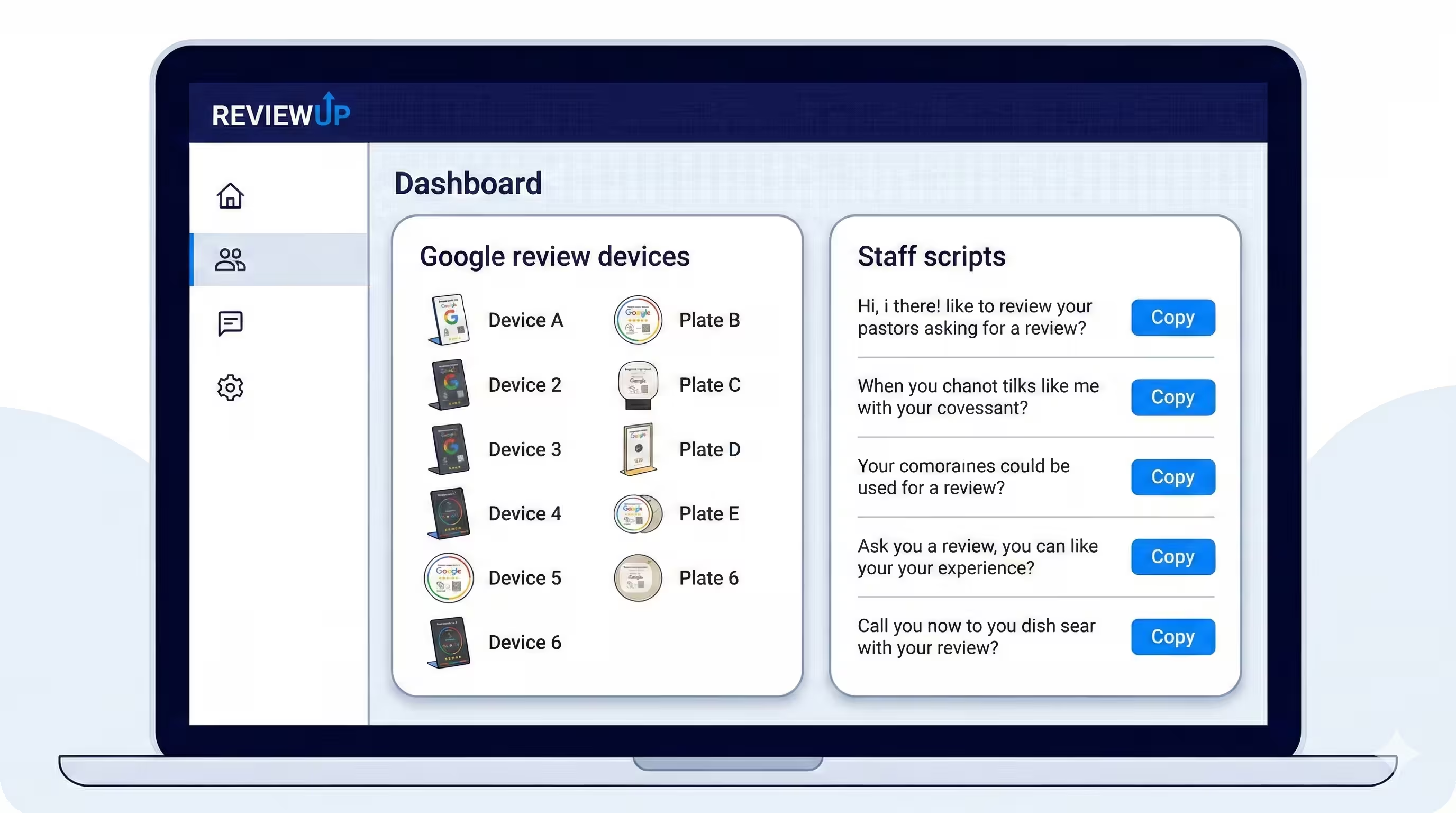
- Activate each NFC/QR device through the REVIEWUP portal and assign it to a staff member or location.
- Adjust your Google review link from one central place, without having to reprogram tags with phone apps.
- Build towards analytics that show which review stands, cards and plates are being tapped or scanned most often.
- Combine that with your growing volume of Google customer reviews to see which teams are turning conversations into online feedback.
Over time, this lets you move from “we think scripts help” to “we can see this counter, this team and this script style consistently drives more reviews”. That’s the kind of insight you expect from proper google review management tools, not sticky notes and spreadsheets.
For a broader view on setting up and managing reviews, our Google review management guide for Australia and 10 proven ways to get more Google reviews in 2026 are useful next reads.
Frequently asked questions
Should staff ask every customer for a Google review?
In general, yes – as long as it’s done politely and at the right moment. Asking most customers for an honest review gives you a more balanced picture of your service. Just avoid pressuring people who are clearly in a rush or having a difficult day.
What if staff feel shy or awkward using scripts?
That’s normal at first. Start with very short scripts and focus on practice in a safe environment. Make it clear that scripts are a starting point, not a strict rule. Over time, staff can adjust the wording so it feels more natural while keeping the key message the same.
Is it okay to ask for “5-star” reviews specifically?
It’s much safer to ask for honest feedback rather than “5-star reviews only”. Google’s policies discourage incentivising specific star ratings. Asking for genuine feedback also feels more authentic to customers and helps you learn where to improve.
How often should we talk about scripts in team meetings?
It’s a good idea to revisit scripts briefly every few weeks, especially when you have new staff or you’re introducing new tools like NFC review stands. Quick refreshers keep scripts top of mind without turning them into a chore.
How does REVIEWUP help with scripts and staff performance?
REVIEWUP provides NFC and QR Google review tools plus a review management portal. By activating each device in the portal and assigning it to staff or locations, you can see which counters or teams are generating the most engagement. You can then coach staff on scripts and recognise those who consistently turn great service into Google customer reviews.
Can we use these scripts in follow-up emails or SMS as well?
Yes, many of these scripts can be adapted for follow-up messages. Just shorten them slightly and include your Google review link. If you’re automating review requests, make sure the tone stays polite, the frequency is reasonable and you’re complying with privacy and spam laws. Our guide on automating Google review requests has more detail.