Updated for 2026 · Written for Australian small and local businesses.
If you run a local business in Australia, your Google Business Profile (GBP) is one of the most important free tools you have. It controls how you appear in Google Search and Maps, how your reviews show up, and how customers contact you. If your profile is missing or half-finished, you leave calls, bookings, and walk-ins on the table.
This step-by-step guide walks you through setting up your Google Business Profile from scratch. You can follow it in one sitting, or work through it in stages with your team.
Source · Whitespark Local Search Ranking Factors
1. What you need before you start
Setting up a Google Business Profile is smoother when you gather a few basics first.
- A Google account you control (ideally on your business domain)
- Your legal business name and trading name if different
- Your full street address or service area
- Your main phone number and website URL
- Standard opening hours and public holiday plans
- A clear logo file and at least one good photo of your premises or team
2. Start your Google Business Profile
You can start your profile from either Google Search or directly via Google’s sign-up flow.
- On your computer, visit https://www.google.com/business/ while logged into your Google account.
- Click the button to manage or add a business.
- Type your business name in the search box.
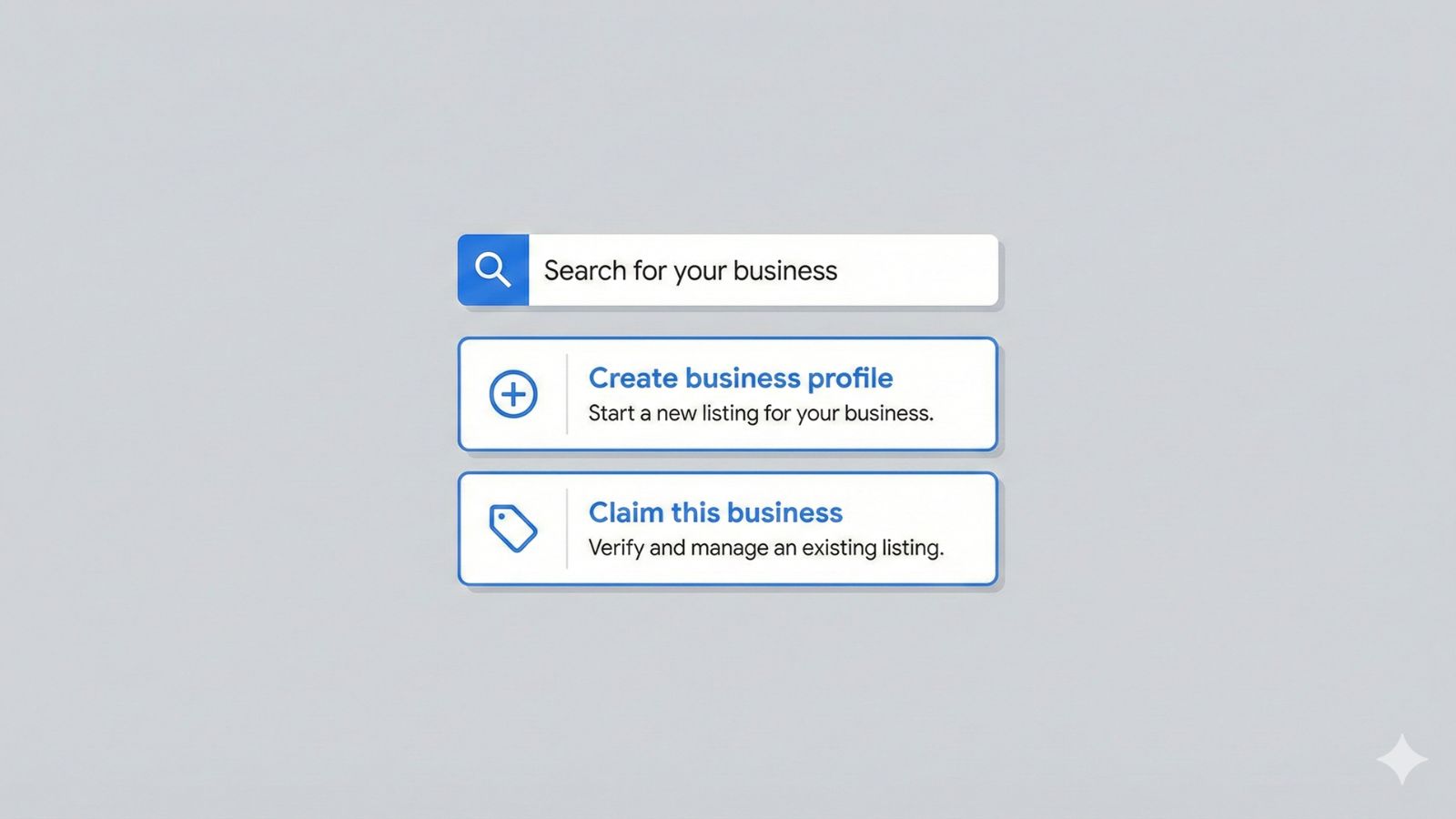
At this point, one of two things usually happens:
- Google finds an existing listing with your name or address and asks if it is yours.
- Google finds nothing and lets you create a new profile.
If you see an existing profile that belongs to you but is already managed, follow the prompts to request access.
Reference · Request ownership of a Business Profile — Google Support
3. Choose the right business type
Google will ask how your business operates. You have three simple options:
- Storefront · Customers visit you at a physical location.
- Service-area business · You travel to customers and may not want your address shown.
- Hybrid · You have a location and also visit customers in a service area.
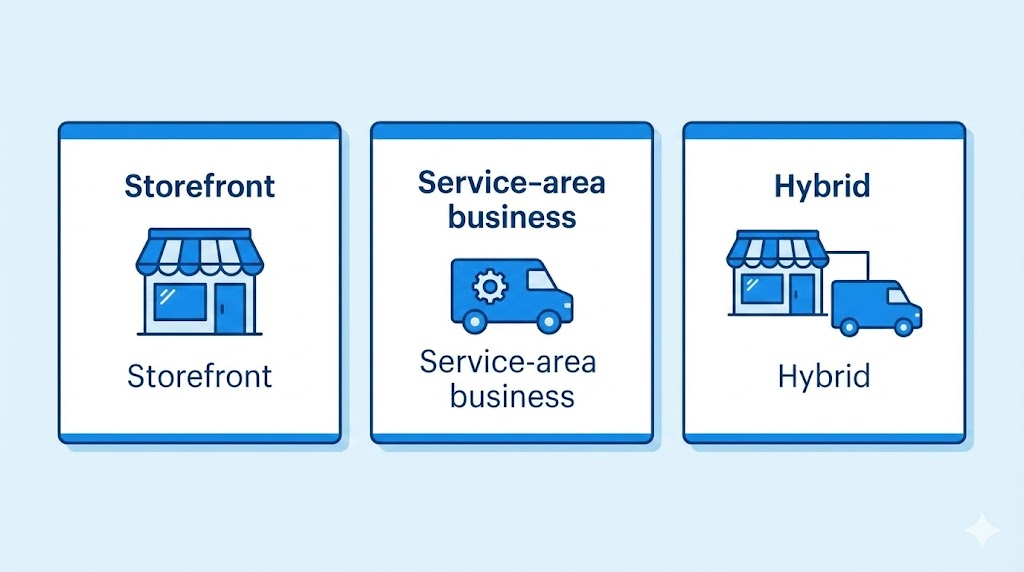
Pick the option that matches how you really work. If you change this later, you can adjust address and service areas from the profile editor.
4. Enter your business name correctly
Google expects your business name to match your real-world branding. This means your signage, website header, and other listings.
- Use “Smith Street Dental” rather than “Smith Street Dental · Best Dentist Melbourne”.
- Avoid adding phone numbers, marketing slogans, or lists of services into the name field.
Reference · Business Profile name guidelines — Google Support
5. Add your address or service area
The next step is to tell Google where you operate.
5.1 Storefront businesses
If customers visit you at a physical address:
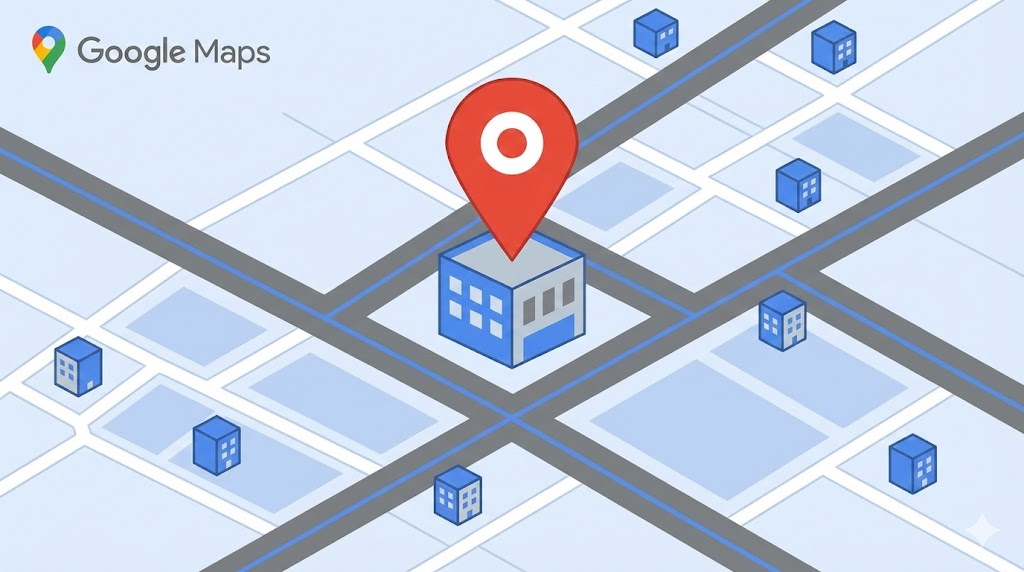
- Enter your street address exactly as it appears on signage and official documents.
- Check that the pin on the map lands in the right place.
- Use the same format on your website and major directory listings.
5.2 Service-area businesses
If you travel to customers and do not serve them at your address:
- You can hide your street address.
- You can specify suburbs, cities, or postcodes as your service area.
- Keep the area realistic, covering places you genuinely serve.
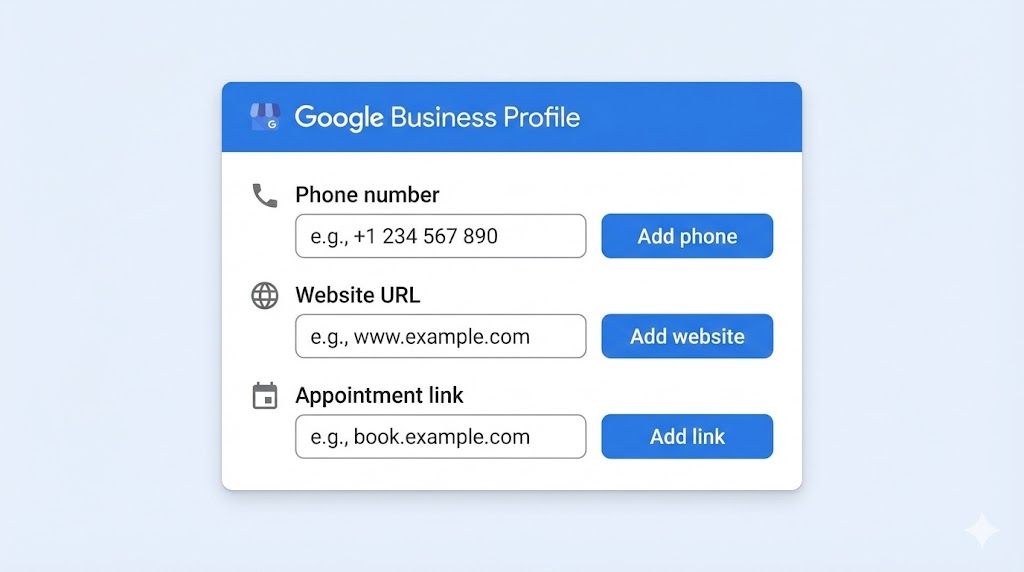
6. Add phone, website, and booking links
Now tell Google how customers can contact you.
- Phone · Use the number that actually gets answered during business hours.
- Website · Link to your main site or a strong location page.
- Appointment link · If you take bookings, link directly to your booking page.
You can add tracking parameters to your website link if you want to measure GBP traffic in Google Analytics.
7. Pick your primary and secondary categories
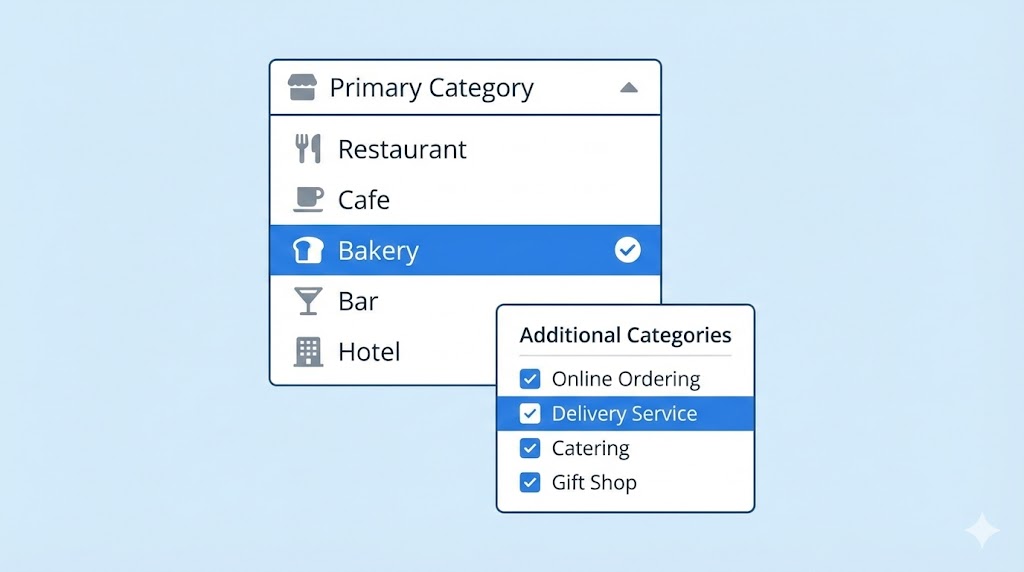
Categories help Google understand what you do. This step has a big effect on which searches you can show up for.
- Type a few words that describe your business and see which category suggestions appear.
- Choose the primary category that best matches your main service.
- Add one or two secondary categories for closely related services.
8. Set your hours and special hours
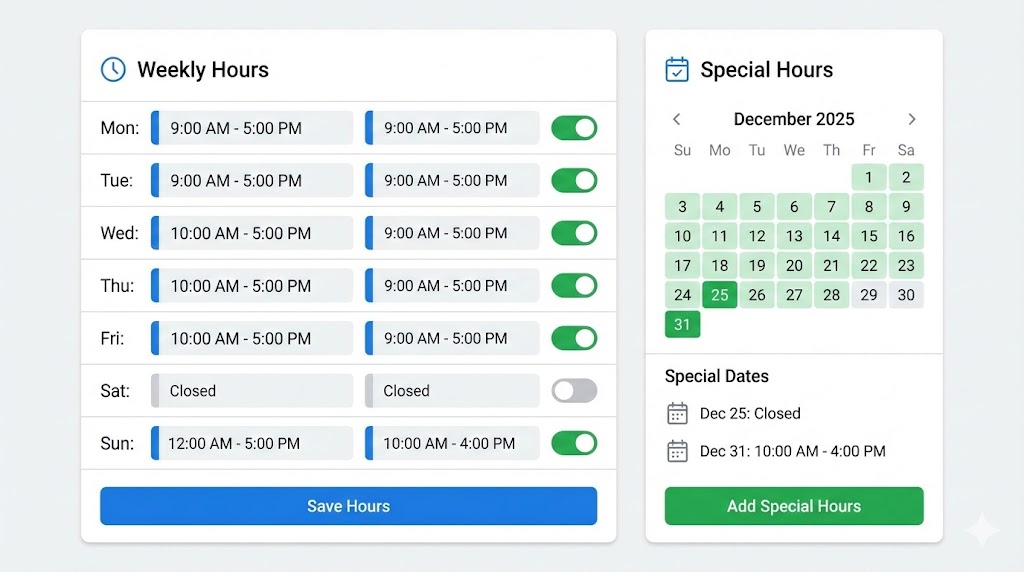
Accurate hours help avoid frustration and negative reviews. Set the days and times you are open, then plan ahead for holidays.
- Set your normal weekly hours.
- Use the “Special hours” option for public holidays and seasonal changes.
- If you have different hours for phone support and in-person visits, pick the hours that matter most to customers.
9. Verify your business
Verification proves you are the rightful owner of the business at that location. Without it, many edits will not go live and you may not appear for key searches.
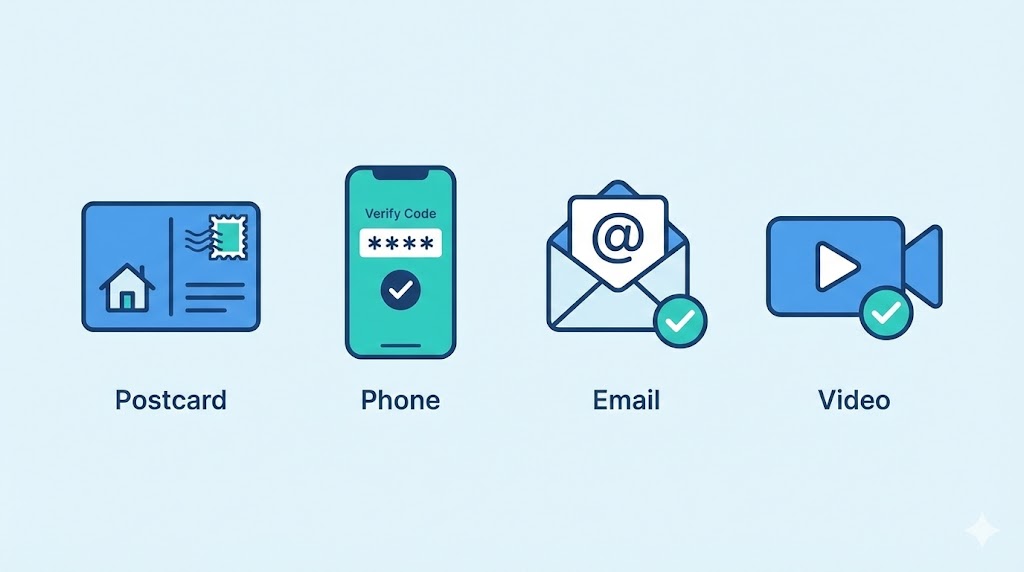
Google may offer you one or more methods, such as:
- Postcard with a code sent to your address
- Phone call or SMS
- Short video verification
Follow the instructions for your chosen method. Once verified, you will see more options appear in the profile editor.
Reference · Verify your Business Profile — Google Support
10. Write a clear business description
With the basics in place, write a short description in plain English. Focus on what you do, who you serve, and where you work.
- Mention your main services in natural language.
- Include your city or area where it fits.
- Avoid buzzwords and long marketing jargon.
11. Add logo, cover photo, and key images
Now make your profile look real and inviting. Google gives you dedicated spots for a logo, cover photo, and additional images.
- Logo · A clear version of your logo on a clean background.
- Cover photo · A welcoming image of your shopfront, clinic, or service in action.
- Interior and exterior photos · Show customers what to look for when they arrive.
- Team photos · Put faces to the name where appropriate.

Source · Search Engine Journal — Online Review Statistics
12. Add services and products
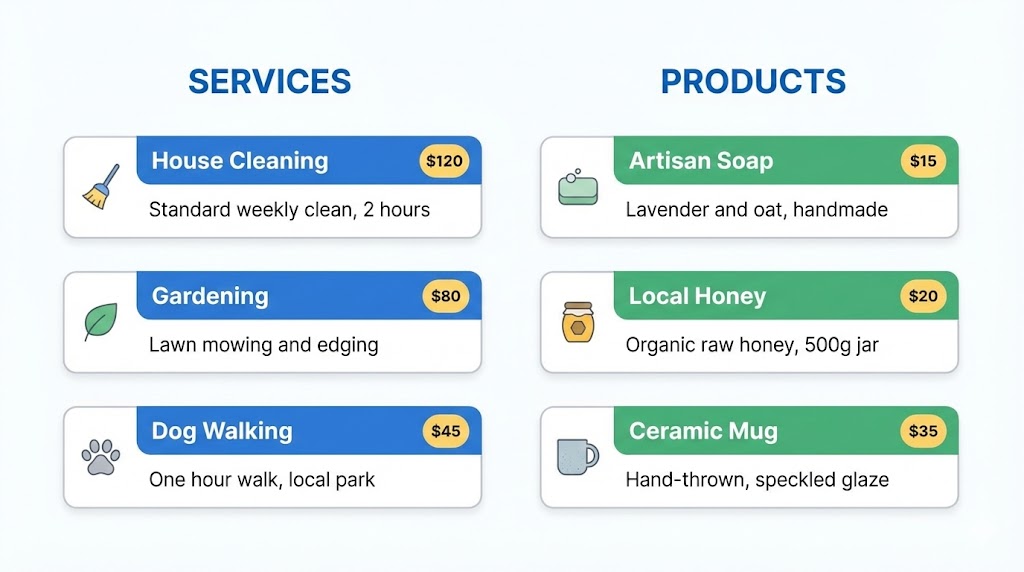
Next, use the Services and Products sections to highlight what you actually sell or deliver.
12.1 Services
Group services into sensible sections. For example:
- For a plumber · “Emergency plumbing”, “Hot water systems”, “Blocked drains”.
- For a salon · “Haircut and styling”, “Colour services”, “Treatments”.
- For a clinic · “New patient consults”, “Check-ups”, “Specific treatments”.
12.2 Products
Use Products if you sell clear, repeatable offers such as:
- Gift vouchers
- Starter packs
- Signature menu items or bundles
13. Add attributes and highlights
Attributes tell customers extra details that matter in day-to-day decisions. These can include:
- Accessibility features
- Payment options
- Amenities such as Wi-Fi or toilets
- Business ownership where available
- Health and safety practices
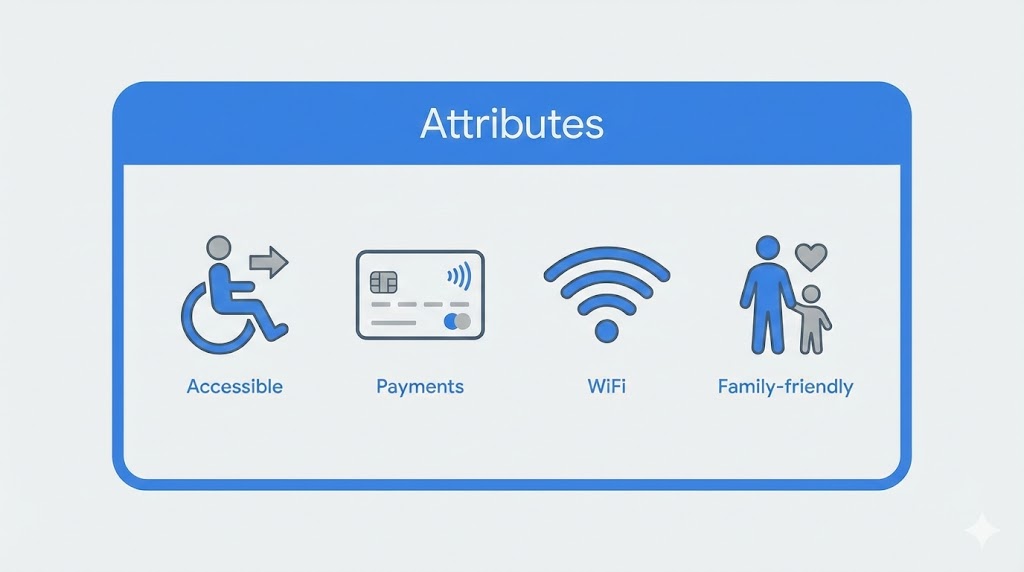
Only tick the options that truly apply to your business. These details can influence filters and help your profile stand out.
14. Turn on messaging (if it suits your business)
Messaging lets people contact you directly from Search and Maps. This is managed through the either by a text message you receive on your number or you can choose to setup as WhatsApp.
- Turn it on if you can reply during business hours.
- Set a simple default welcome message.
- Decide who on your team is responsible for replies.
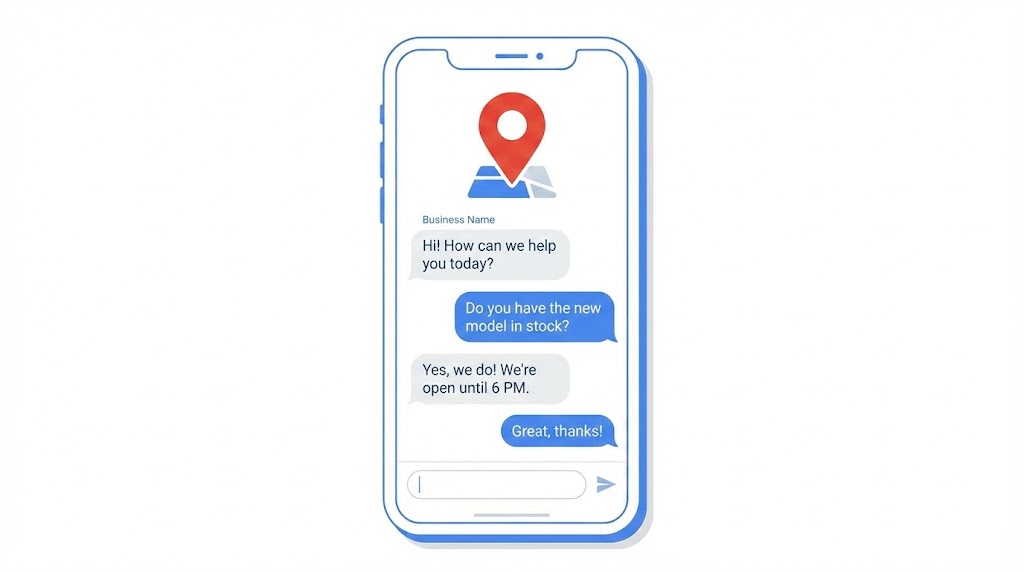
Messaging works well for salons, clinics, and retail questions. For urgent trades and emergencies, phone calls are usually better.
15. Add your first posts and offers
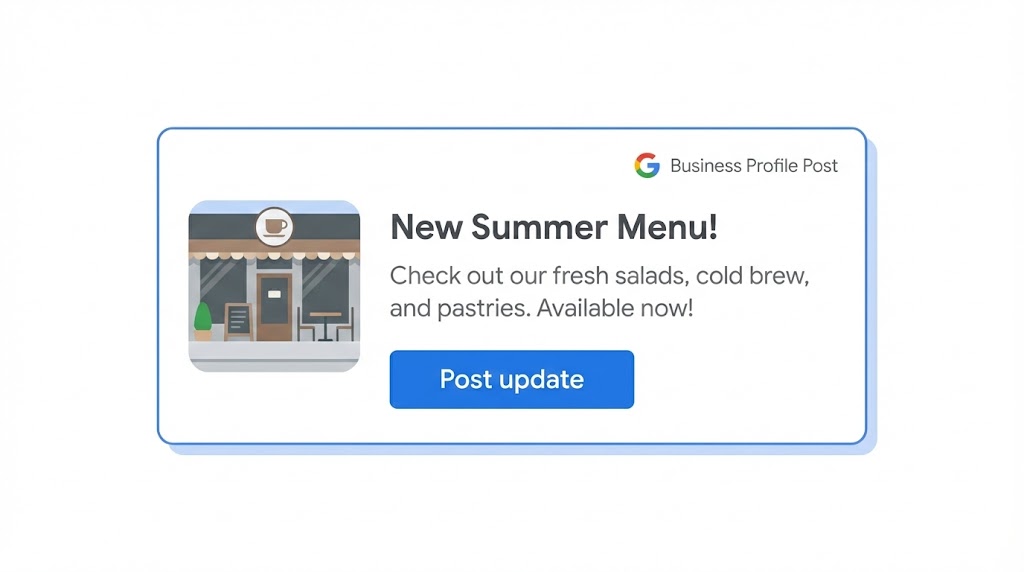
Posts show that you are active and open. You can add updates, offers, and events directly from Google Search or the Maps app.
- Start with a simple welcome post or a “New here? Here’s what we do” update.
- Add a basic offer if you are running a promotion.
- Include a clear photo and call to action on each post.
16. Connect your review system from day one
Your profile is now live and complete enough to be useful. The next step is to build a steady flow of Google reviews. This is where many Australian businesses stop, then wonder why their profile stalls.
Sources · Backlinko — Online Review Stats, Textedly — Online Review Statistics
Set up a simple review system from day one:
- Generate your direct Google review link inside your profile.
- Save it in a safe place and share it with your team.
- Decide when you will ask for reviews in your customer journey.
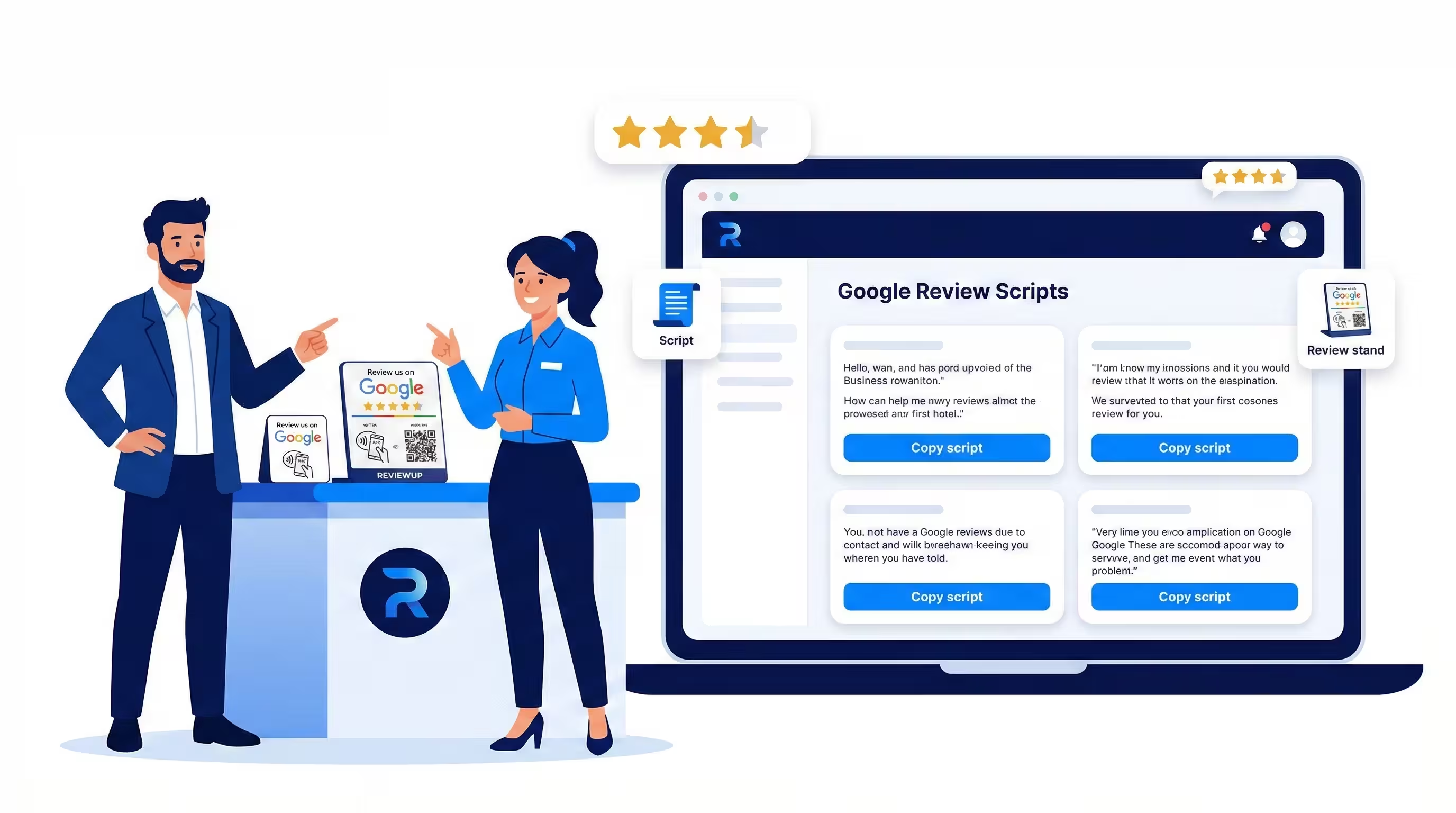
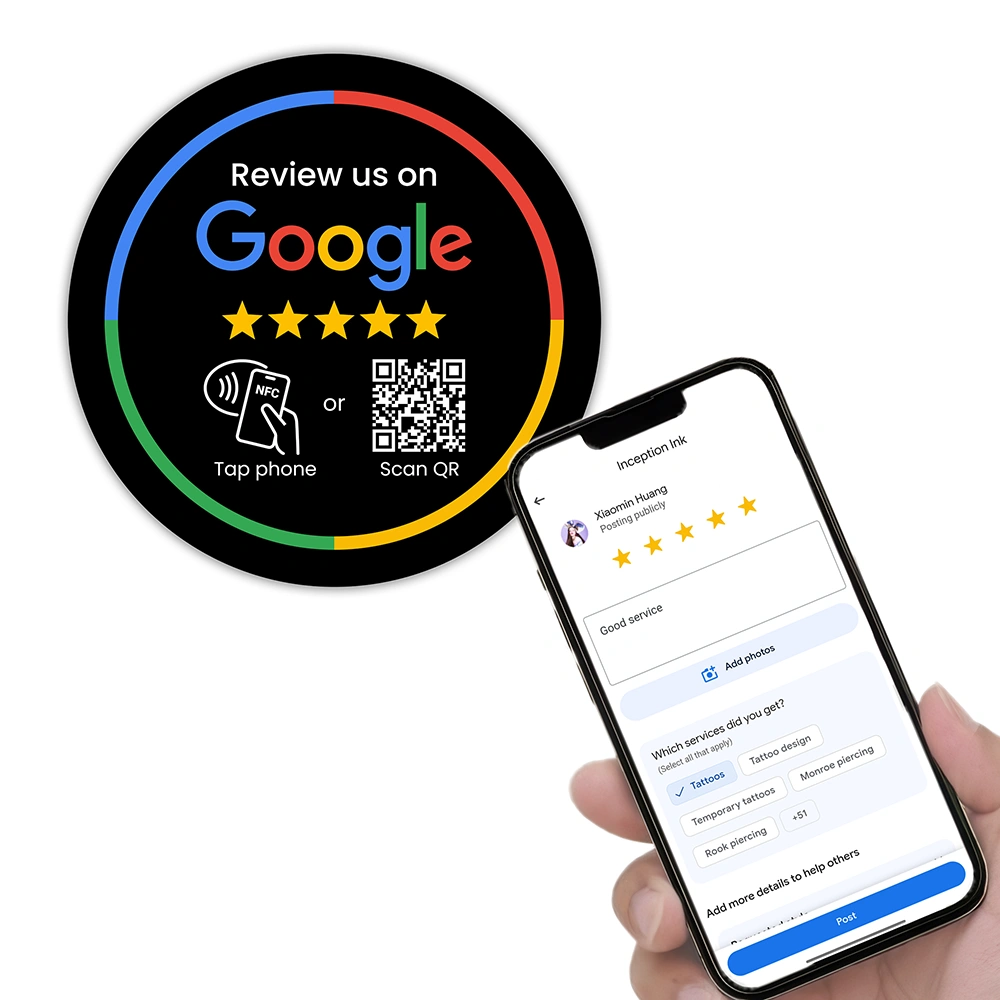
To make this easier in the real world, many businesses use physical prompts:
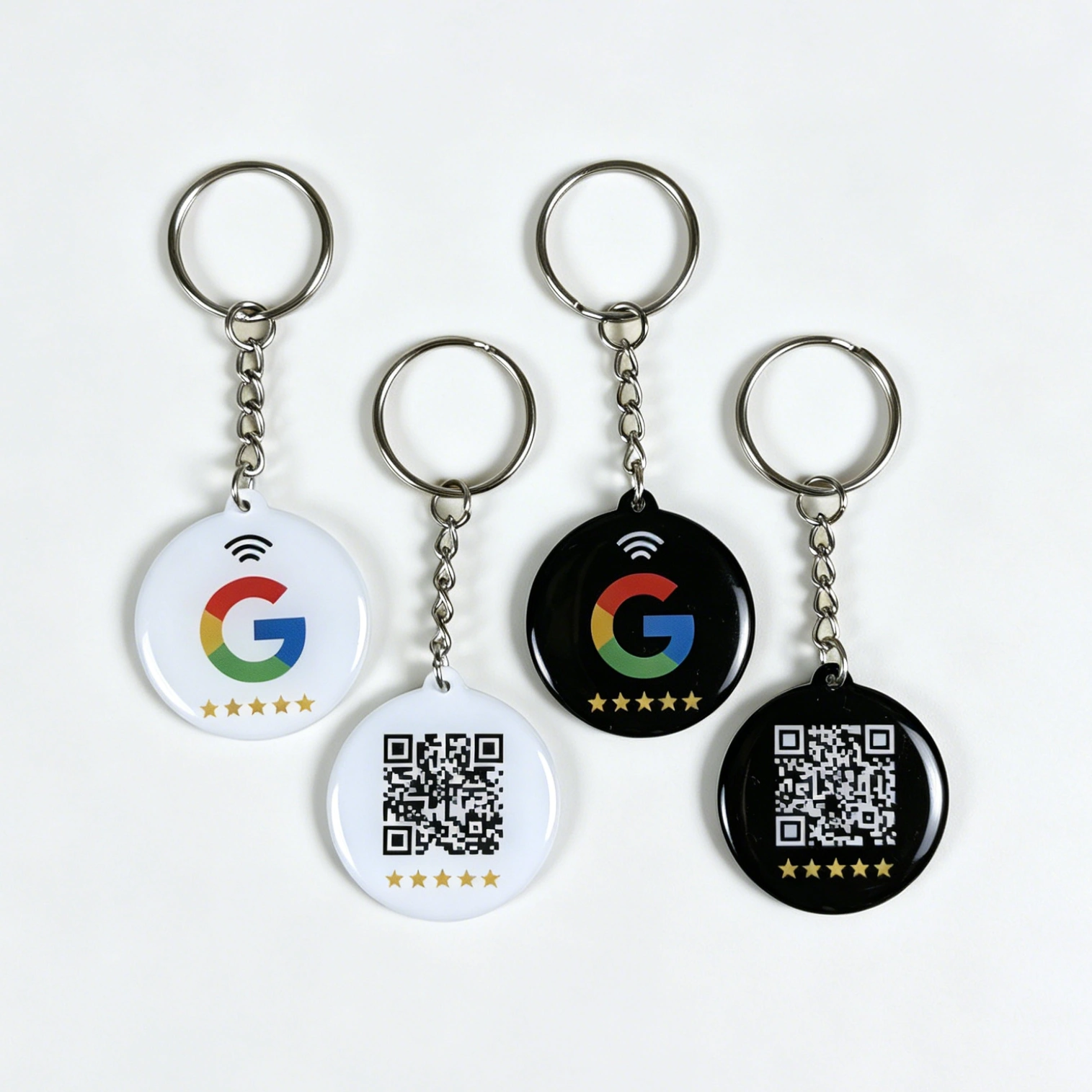
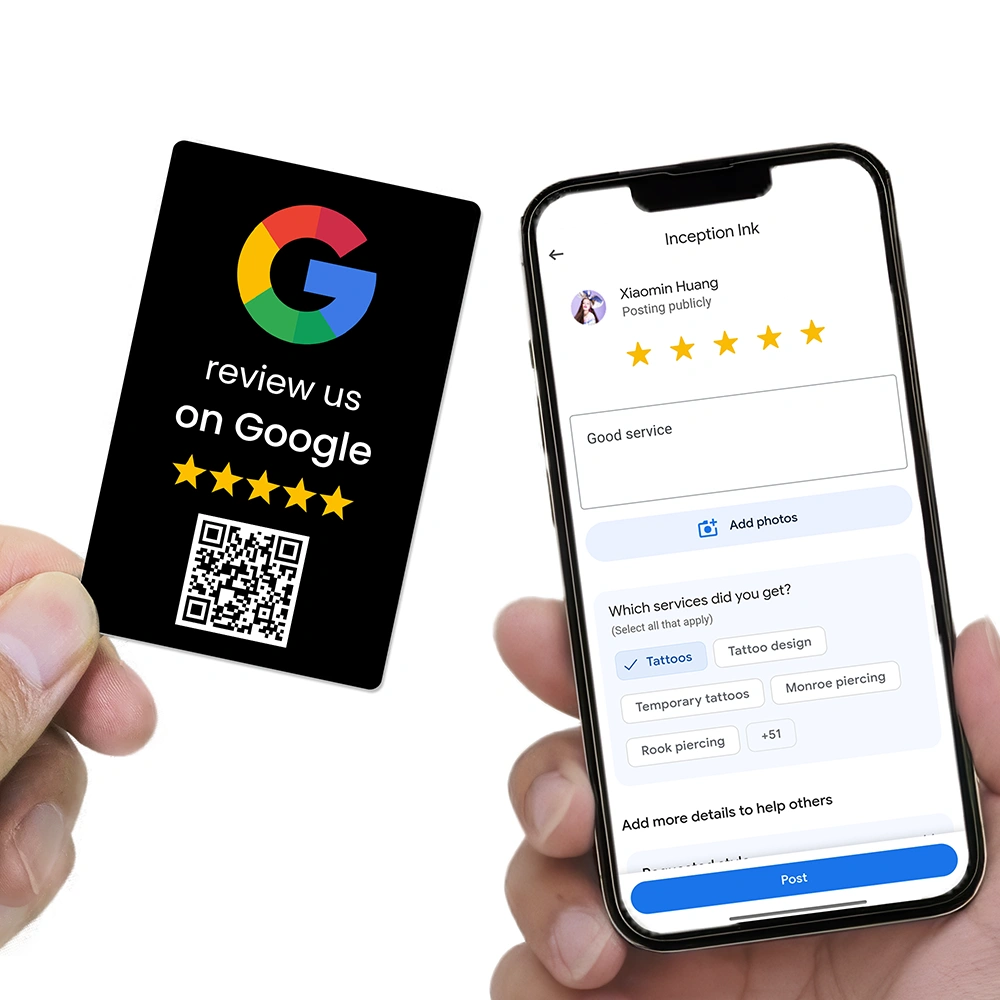
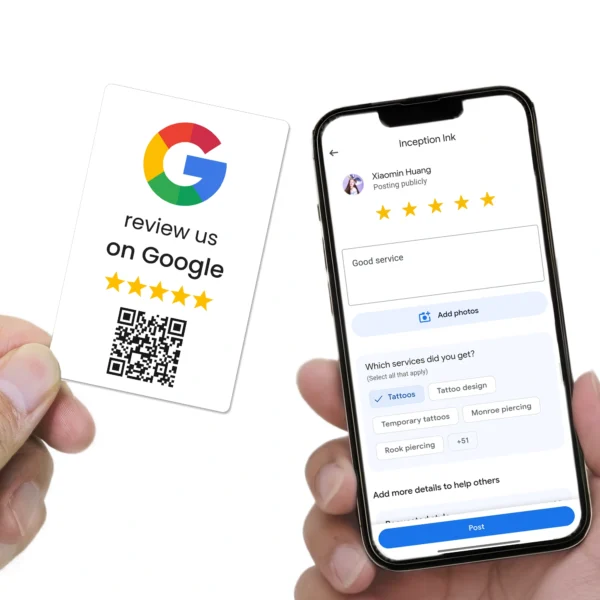
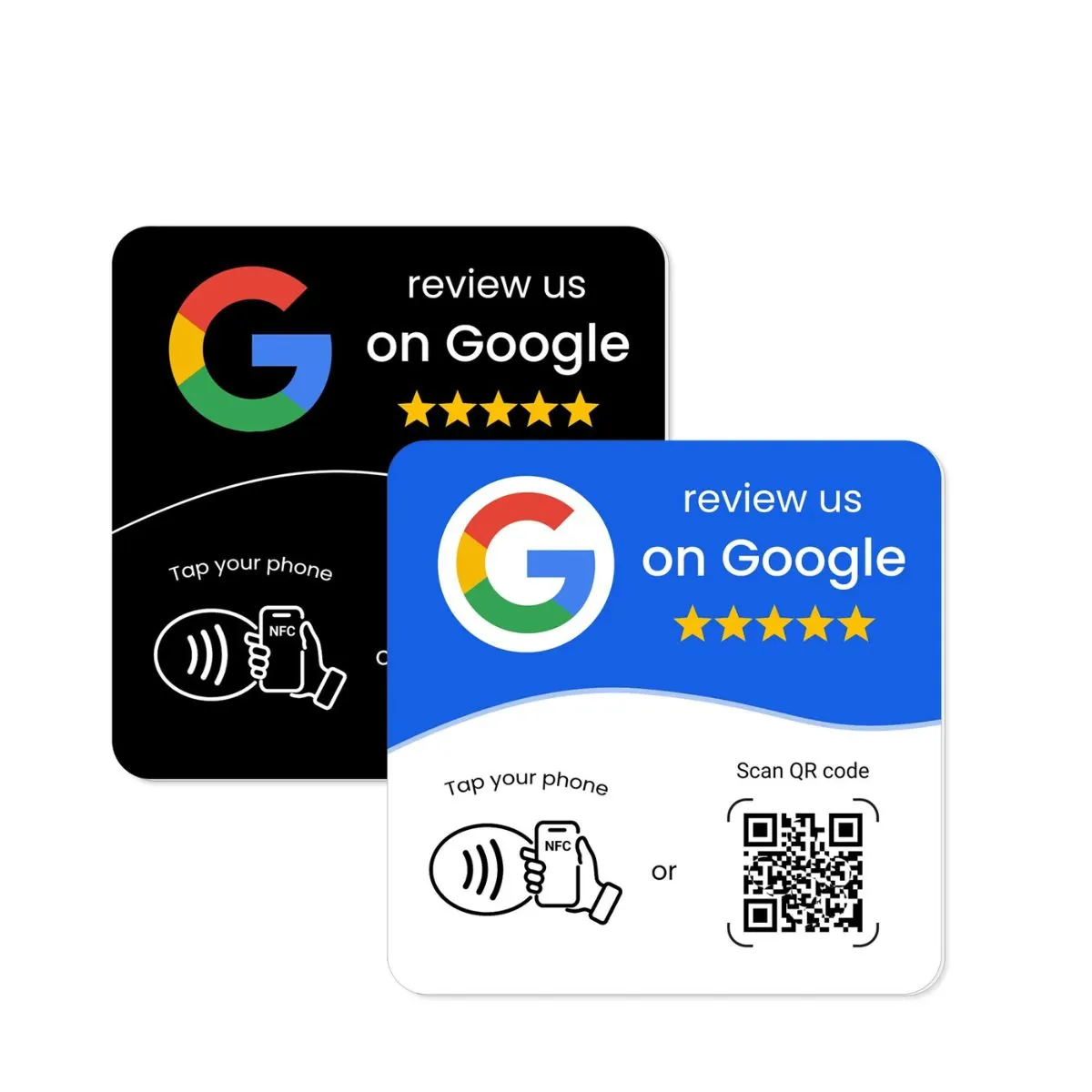
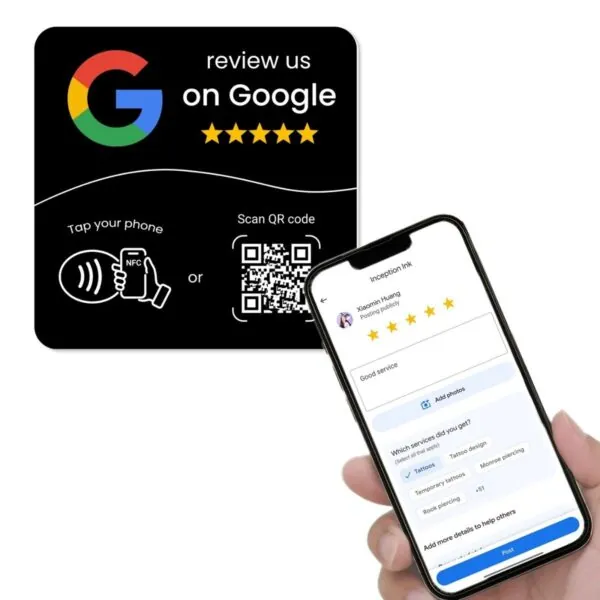
- Google Review Cards for staff to hand out at checkout, reception, or after a job.
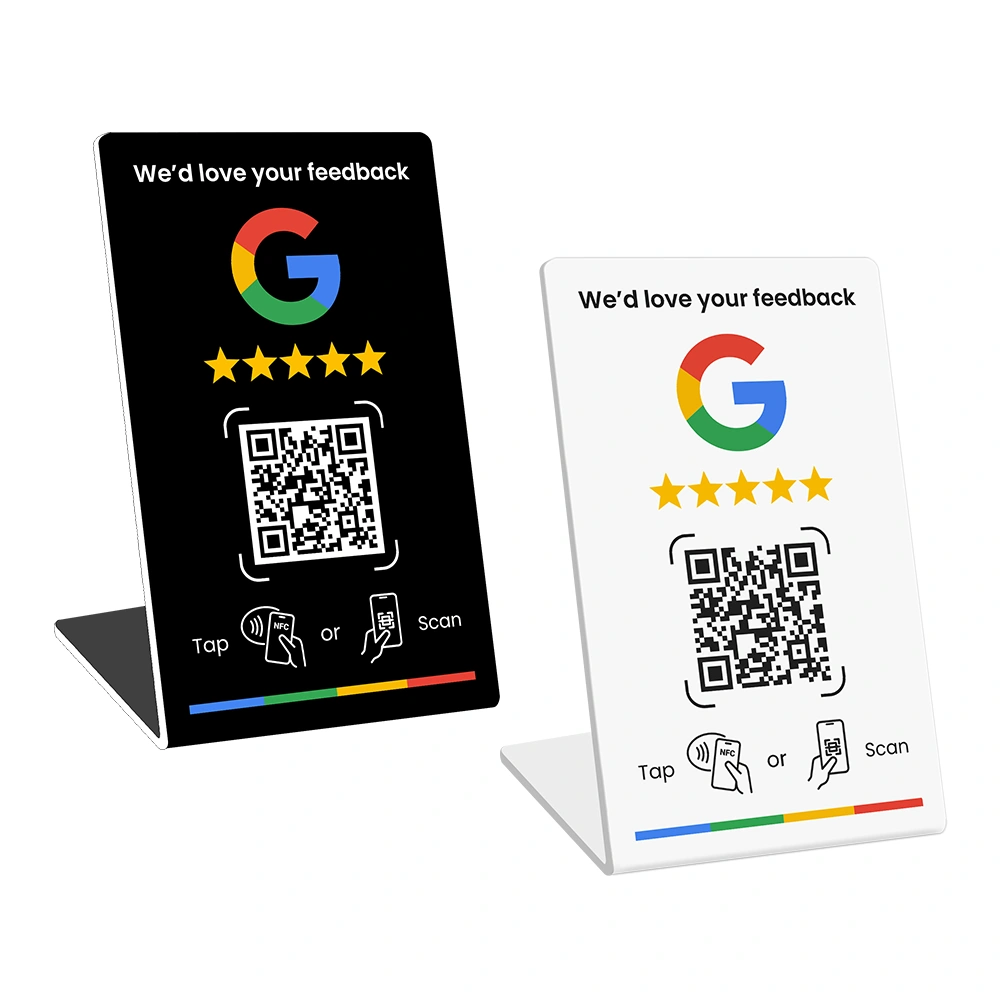
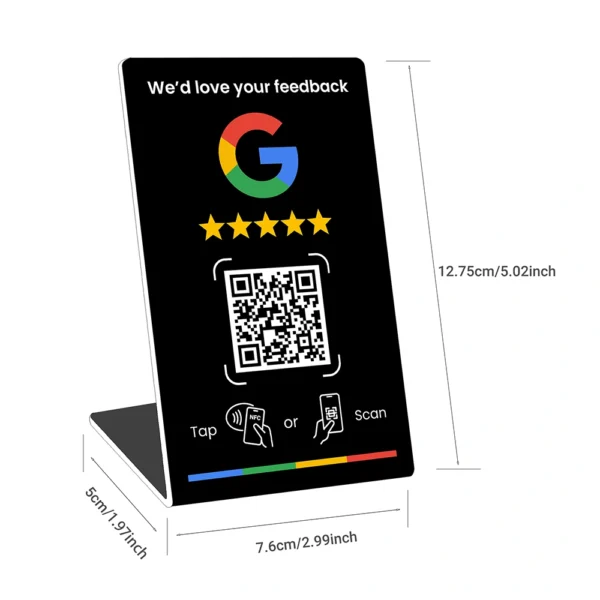
- Google Review Stands on counters and desks where customers wait.
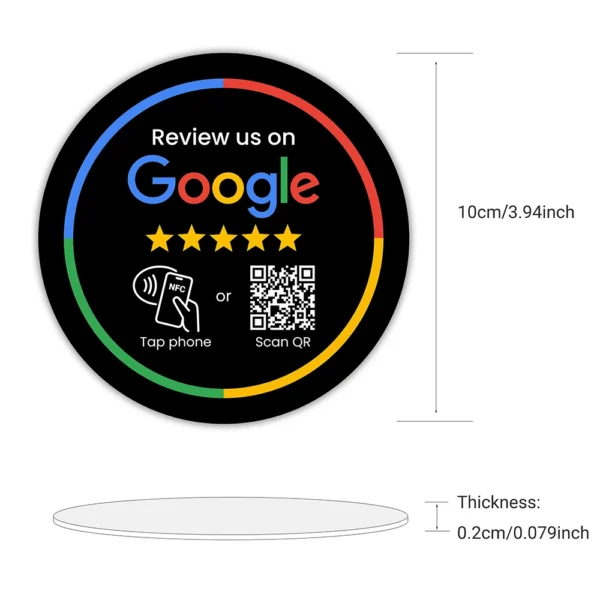
- Google Review Plates mounted where people sit, such as tables, walls, and waiting rooms.
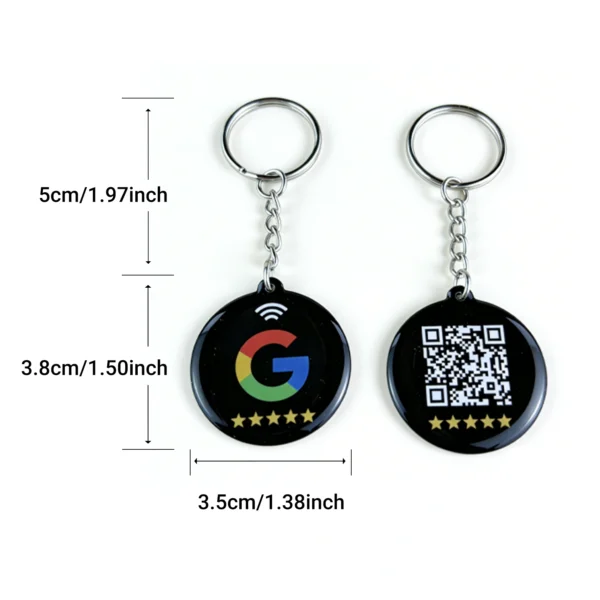
Each REVIEWUP product taps or scans directly to your Google review link, making it easier for customers to leave feedback on the spot.
For practical playbooks on asking for reviews, see:
- How to Get More Google Reviews Without Annoying Customers
- Why Customers Ignore Review Requests — And How Do I Fix It?
- How to Automate Google Review Requests
17. Next steps: optimisation and reviews
At this point your Google Business Profile is set up and verified. That alone puts you ahead of many businesses that never complete the process. The next stage is to move from “set up” to “optimised” and to treat GBP as a living asset, not a one-off project.
Once setup is done, work through these guides:
- The Ultimate Google Business Profile Optimisation Guide for 2026
- The Ultimate Google Review Management Guide for Australian Businesses (2026 Edition)
- 10 Proven Ways to Get More Google Reviews in 2026
- Why Buying Google Reviews Backfires (and How to Get Real Reviews Instead)
18. FAQs about setting up Google Business Profile
Do I need a physical location to set up Google Business Profile?
No. Service-area businesses such as tradies and mobile services can set up a profile by using a service area instead of showing their street address. You still need a real address for verification, but you can keep it hidden from the public.
How long does verification usually take?
Many businesses are verified within a few days, especially by phone, SMS, or email. Postcard and video verification can take longer. You can still prepare content and photos while you wait.
Can I change my address or categories later?
Yes. You can edit your address, service area, and categories from the profile editor in Search or Maps. Large changes can cause short-term shifts in visibility, but accurate data helps in the long run.
Is a website required to set up Google Business Profile?
You can create and verify a profile without a website, but adding a website link helps customers learn more and helps search engines understand your business in more detail.
When should I start asking for Google reviews?
Once your profile is verified and your basic details are correct, you can begin asking for reviews. Start small with a few happy customers and grow from there using a clear plan and tools such as REVIEWUP cards, stands, and plates.
What if someone has already created a listing for my business?
If you find an existing listing that belongs to you, request access through Google’s “Request ownership” process rather than creating a new profile. This keeps your online presence clean and avoids duplicates.
Written for Australian small and local businesses.